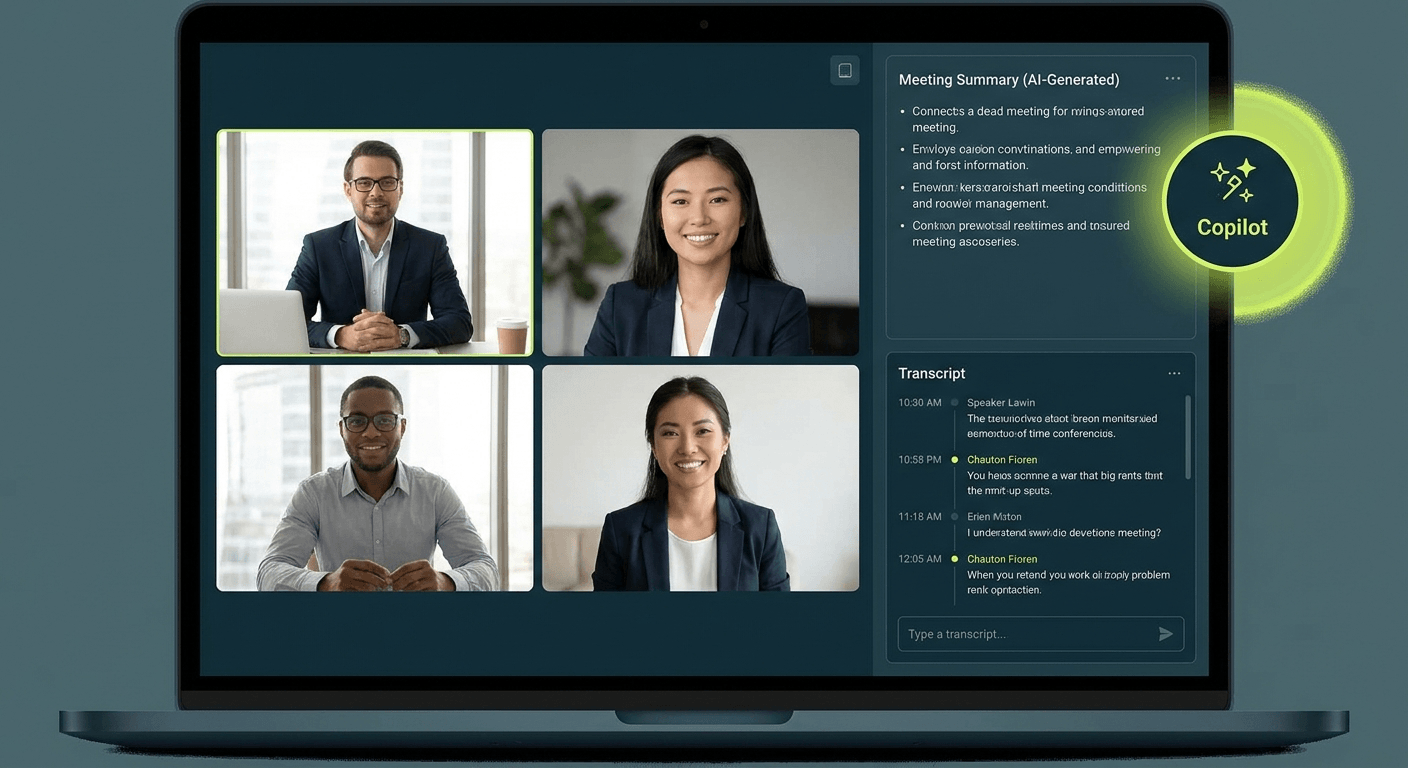
Yes, Microsoft Teams can use AI to transcribe and summarise your meetings automatically. If your organisation is on Microsoft 365 Business Standard or above, you can enable live transcription right now. Add a Microsoft 365 Copilot licence and Teams will generate an AI meeting summary that includes key points, action items, and decisions, all without anyone lifting a pen.
If you have ever finished a meeting and immediately disagreed with a colleague about what was actually decided, you are not alone. Most Australian workplaces run back-to-back meetings, take patchy notes, and rely on memory to follow through. The result is missed deadlines, repeated conversations, and a lot of “I thought you said…” moments. Microsoft Teams has a practical answer to this problem, and it does not require any extra apps or manual effort.
What Is Teams Meeting Transcription?
Teams meeting transcription is a built-in feature that converts spoken audio into a real-time text transcript during your meeting. The transcript captures who said what, labels each speaker by name, and timestamps the conversation as it happens. After the meeting ends, the full transcript is saved and accessible to anyone who was invited, including people who could not attend.
Transcription works using Microsoft’s speech recognition technology, which processes audio through Microsoft’s cloud infrastructure. It is not a third-party tool and does not send audio outside the Microsoft 365 ecosystem.
What Licences Do You Need?
To use transcription in Microsoft Teams, your organisation needs at least a Microsoft 365 Business Standard licence. The feature is not available on Microsoft 365 Business Basic. For the AI-generated meeting summary powered by Copilot, each user needs a Microsoft 365 Copilot add-on licence assigned to their account.
Here is a quick breakdown:
- Live transcription: Microsoft 365 Business Standard and above
- AI meeting summary (Copilot): Microsoft 365 Copilot licence required
- Recording: Microsoft 365 Business Standard and above
If you are unsure which licences your team holds, your IT administrator can check this in the Microsoft 365 admin centre.
How to Turn On Live Transcription in a Meeting
Starting a transcript during a Teams meeting takes under ten seconds. Follow these steps:
- Join or start your Teams meeting as normal.
- Click the three-dot More menu in the meeting toolbar at the top of the screen.
- Select Record and transcribe from the dropdown menu.
- Click Start transcription.
- A notification will appear to all participants confirming the transcript has started. This is a privacy notice and cannot be bypassed.
The transcript panel will open on the right side of the screen. It updates in real time as people speak, with each speaker’s name attached to their words. You do not need to start a recording at the same time, although you can run both simultaneously if needed.
To stop the transcript before the meeting ends, go back to More > Record and transcribe > Stop transcription.
How Copilot Generates an AI Meeting Summary
If you have a Microsoft 365 Copilot licence, Teams will automatically generate an AI meeting summary once the meeting ends. The summary appears in the meeting chat and in the meeting details tab in your Teams calendar.
The Copilot summary typically includes:
- Key discussion points: A structured overview of the main topics covered
- Action items: Tasks that were mentioned or assigned during the meeting
- Decisions made: Conclusions the group reached during the conversation
- Follow-up questions: Open items that still need resolution
You can also ask Copilot follow-up questions about the meeting directly in the chat. For example, you might ask “What did James say about the project timeline?” or “What were the three action items assigned?” Copilot will reference the transcript to give you a specific answer.
How to Access the Transcript and Summary After the Meeting
After the meeting ends, both the transcript and the Copilot summary are available in a few places:
- Teams calendar: Open the meeting event in your Teams calendar and click the Recap tab. You will find the transcript, summary, and any recording all in one place.
- Meeting chat: The Copilot summary is posted automatically in the meeting chat thread after the meeting ends.
- Microsoft Stream: If recording was enabled, the recording and transcript are stored in Stream and linked to the meeting.
Transcripts can also be downloaded as a Word document or a VTT caption file if you need to share or archive them outside Teams.
How to Share the Summary With People Who Missed the Meeting
Sharing a summary with absent team members is straightforward. The simplest method is to copy the Copilot summary from the meeting chat and paste it into an email, a Teams message, or a shared document. If the person is part of your Microsoft 365 organisation and was invited to the meeting, they can access the full Recap tab in the calendar event directly.
For external participants who were not part of the original meeting, you can export the transcript as a Word document and send it manually. Copilot summaries cannot be shared externally through Teams directly, so a copy-paste approach is usually the most practical option.
Honest About the Limitations
Teams transcription is genuinely useful, but it is not perfect. Here is what to expect:
- Accuracy varies with accents: Microsoft’s speech recognition performs well with standard Australian English but can struggle with strong regional accents, technical jargon, or heavy background noise. Reviewing the transcript after the meeting is worth the habit.
- Multiple speakers at once: When people talk over each other, the transcript can misattribute words or drop phrases entirely. This is a limitation of current speech recognition technology, not just Teams.
- Speaker identification: Teams uses your Microsoft 365 profile to label speakers. If someone joins from an external account or a room device, their contributions may appear as “Unknown speaker.”
- Copilot summaries are not editable: The AI-generated summary cannot be adjusted inside Teams. If the summary contains an error, you will need to correct it manually before sharing.
Privacy and Australian Workplace Law
Before enabling transcription, it is worth understanding your obligations under Australian law. The Privacy Act 1988 and relevant state surveillance laws, such as the Surveillance Devices Act in Victoria, place requirements on how organisations record and store conversations in the workplace.
Key considerations include:
- Consent is required: Teams displays a clear notification to all participants when transcription starts. This satisfies the notification requirement in most Australian jurisdictions, but it is good practice to also have a written policy that informs staff transcription may occur.
- Data residency: Microsoft 365 offers data residency options for Australian customers, which means transcript data can be stored in Australian data centres. Confirm this with your IT administrator if data sovereignty is a concern.
- Retention policies: Set appropriate retention and deletion policies in the Microsoft Purview compliance portal to ensure transcripts are not held longer than necessary.
- External participants: Always inform external guests that the meeting is being transcribed before it begins, not just at the point the notification appears.
If you are unsure about your obligations, speaking to your legal team or IT provider before rolling this feature out organisation-wide is a sensible step.
Frequently Asked Questions
Can Teams transcribe a meeting I did not record?
Yes. Transcription and recording are separate features in Teams. You can run a transcript without recording the meeting at all.
Does everyone in the meeting need a Copilot licence?
No. Only the person who wants to use the Copilot summary features needs a Copilot licence. Other participants can still access the transcript without one.
How long are transcripts stored?
By default, Teams stores transcripts in SharePoint or OneDrive, subject to your organisation’s retention policies. Your Microsoft 365 administrator controls how long they are kept.
Can I use transcription in channel meetings and webinars?
Yes. Transcription is available in scheduled channel meetings, one-on-one calls, and Teams webinars, provided the organiser has the right licence.
What languages does Teams transcription support?
Teams supports transcription in a range of languages, including English, French, German, Japanese, and others. The language is detected automatically or can be set manually before the meeting starts.
Make Every Meeting Count
Meeting transcription and AI summaries in Teams are not just conveniences. They are practical tools that reduce the administrative burden on your team and make sure important decisions actually get followed through. The setup takes minutes and the productivity gains compound over time.
If you want help enabling Teams transcription across your organisation, setting up Copilot licences, or reviewing your Microsoft 365 environment, the Otto IT team is ready to assist. Get in touch with us here or book a free consultation to talk through your options.
managed it support articles
Related Blog Articles
Discover more insights to optimise your business with the latest IT trends and best practices. Stay ahead of the curve by learning how to leverage cutting-edge technology for success. Explore expert advice and valuable guidance to navigate the evolving world of IT solutions