

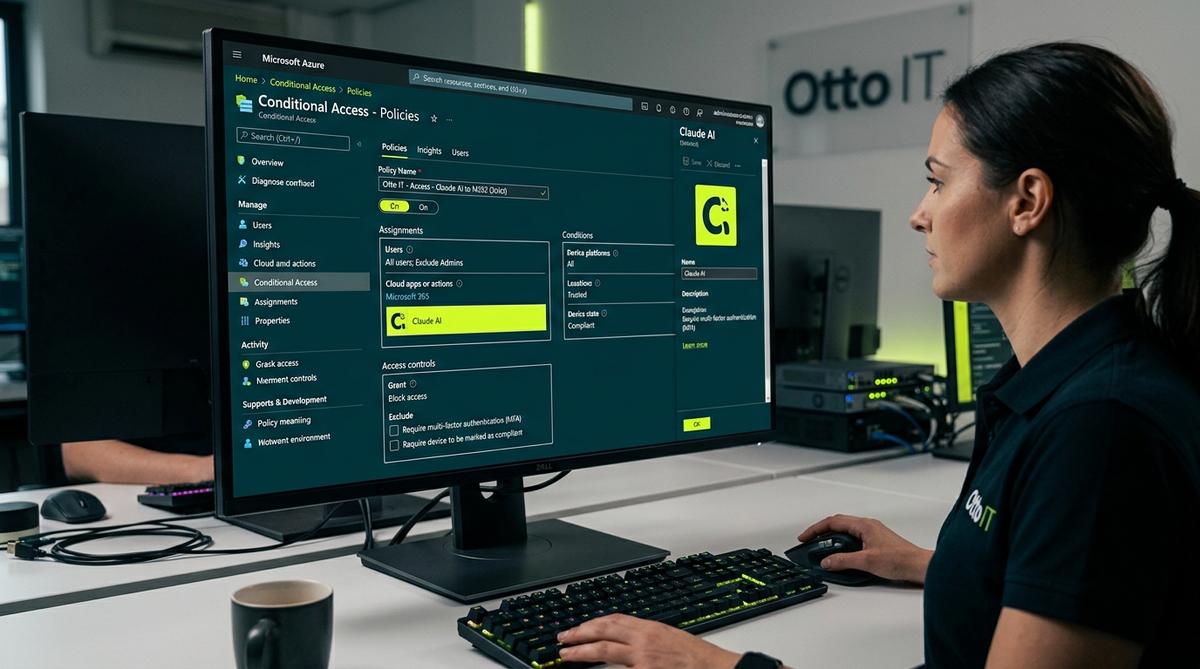
If your organisation has locked down Microsoft 365 Conditional Access to block sign-ins from foreign countries, enabling Claude to access Microsoft 365 through the Model Context Protocol (MCP) requires one additional step that is easy to miss. This post explains exactly what to do.
The short answer: you need to whitelist Anthropic’s published outbound IP range in a named location in Microsoft Entra ID, and then create a Conditional Access policy exception that excludes that location from your country-based block. Here is the complete process, step by step.
Why This Problem Occurs
When you connect Claude to Microsoft 365 using Anthropic’s official Microsoft 365 connector, Claude authenticates to Microsoft’s Graph API on behalf of your users using delegated permissions. This authentication happens through Anthropic’s cloud infrastructure, not from your users’ devices or your office network.
Because Anthropic operates from US-based IP ranges, Microsoft’s Conditional Access engine sees the connection originating from the United States. If you have a policy that blocks sign-ins from all countries except Australia, this authentication will be blocked, and your users will see a “Failed to call tool” error when trying to use Microsoft 365 features in Claude.
The correct fix is not to disable your country-blocking policy. It is to create a named location for Anthropic’s IP addresses and explicitly allow those addresses through Conditional Access, regardless of the geographic country block. This approach is more secure than allowing the United States as a whole, because you are only permitting traffic from a narrow, published, vendor-maintained IP range.
Anthropic’s Published Outbound IP Addresses
Anthropic publishes its outbound IP ranges at the official documentation page: https://platform.claude.com/docs/en/api/ip-addresses
As of June 2026, the outbound IP address range used by Anthropic for MCP tool calls and connector traffic is:
IPv4 (outbound): 160.79.104.0/21
This is the range you need to whitelist. Anthropic states these addresses will not change without prior notice, so you can rely on this range being stable. It is worth bookmarking the documentation page and reviewing it periodically to check for any updates.
Do not whitelist the following phased-out addresses, which are no longer in use:
34.162.46.92/3234.162.102.82/3234.162.136.91/3234.162.142.92/3234.162.183.95/32
Step 1: Create a Named Location for Anthropic’s IP Range
Named locations in Microsoft Entra ID allow you to define specific IP address ranges that can be referenced in Conditional Access policies.
- Sign in to the Microsoft Entra admin centre at entra.microsoft.com as a Global Administrator or Conditional Access Administrator.
- Navigate to Protection > Conditional Access > Named locations.
- Click New location and select IP ranges location.
- Name it something clear, such as “Anthropic Claude MCP Outbound”.
- Mark it as a trusted location (recommended — it clarifies intent and simplifies policy management).
- Under IP ranges, enter:
160.79.104.0/21 - Click Create to save.
Step 2: Add the Exception to Your Conditional Access Policy
You likely already have a policy blocking sign-ins from locations outside Australia. You need to add an exclusion for the Anthropic named location.
- In the Entra admin centre, go to Protection > Conditional Access > Policies.
- Open the policy enforcing your country-based restrictions.
- Under Conditions > Locations, find the Exclude section.
- Add the “Anthropic Claude MCP Outbound” named location to the exclusions.
- Save the policy.
Any authentication request originating from Anthropic’s IP range will now bypass the country-block policy, allowing Claude’s MCP connector to authenticate to Microsoft Graph successfully.
Step 3: Set Up the Microsoft 365 Connector in Claude
With the Conditional Access exception in place, you can complete the Claude connector setup. You need a Claude Team or Enterprise plan, and a Microsoft Entra Global Administrator must complete the consent step.
Option A: Consent Through Claude
If your Global Administrator has a Claude account, they can grant consent during the standard connection flow by navigating to Settings > Integrations, clicking Connect on the Microsoft 365 connector, and approving the admin consent prompt when it appears. Other users in your tenant can then connect without seeing the consent prompt.
Option B: Manual Consent in Microsoft Entra ID (Recommended for IT Admins)
-
- Open Microsoft Graph Explorer at developer.microsoft.com/graph/graph-explorer.
- Add the service principal for M365 MCP Client for Claude — App ID:
08ad6f98-a4f8-4635-bb8d-f1a3044760f0 - Add the service principal for M365 MCP Server for Claude — App ID:
07c030f6-5743-41b7-ba00-0a6e85f37c17 - Grant admin consent by visiting the following URLs, replacing
{your-tenant-id}with your tenant ID:
M365 MCP Client for Claude:
https://login.microsoftonline.com/{your-tenant-id}/adminconsent?client_id=08ad6f98-a4f8-4635-bb8d-f1a3044760f0
M365 MCP Server for Claude:
https://login.microsoftonline.com/{your-tenant-id}/adminconsent?client_id=07c030f6-5743-41b7-ba00-0a6e85f37c17
-
- Sign in as a Global Administrator and approve the delegated permissions when prompted.
Step 4: Restrict Access to Authorised Users
Once the connector is working, limit which users can authenticate to Microsoft 365 through Claude to avoid leaving it open to your entire tenant.
- In Microsoft Entra ID, go to Enterprise Applications and search for M365 MCP Client for Claude.
- Under Properties, set Assignment required to Yes.
- Under Users and groups, add only the users or groups who should have access.
- Repeat for M365 MCP Server for Claude.
Step 5: Optionally Restrict Permissions
By default, the connector requests read-only access to email, calendar, Teams, SharePoint, OneDrive, and the user directory. If you only want Claude to access specific resources, you can selectively revoke permissions in Entra ID. Note that revoking a permission will cause a “Failed to call tool” error for that resource type unless users disable the corresponding tool in their Claude settings.
What Claude Can Access via the Connector
Once connected, Claude can search and read content across:
- Outlook: Emails, calendar events, meeting details
- Teams: Chat messages and channel conversations
- SharePoint: Site content and documents (tenant-wide, based on the user’s permissions)
- OneDrive: Files the user has access to
All access is read-only and delegated. Claude acts on behalf of the authenticated user and can only see content that user already has permission to access in Microsoft 365. Data is retrieved on-demand during queries and is not cached by Anthropic.
Security Considerations
You are whitelisting a specific IP range, not an entire country. Anthropic’s published range 160.79.104.0/21 is a /21 subnet covering approximately 2,048 addresses, which is significantly narrower than allowing the United States as a geographic location. This is the right approach.
Anthropic will notify you before changing IP ranges. Review the documentation page periodically as part of your normal security maintenance and update your named location if the published range changes.
Your existing MFA and device compliance policies still apply. The named location exception only bypasses the country-based block. All other Conditional Access controls remain in effect.
Audit logs are maintained. Microsoft Entra sign-in logs record each authentication from the Anthropic IP range. Filter sign-in logs by the named location “Anthropic Claude MCP Outbound” to monitor all Claude connector authentications.
Troubleshooting
“Failed to call tool” errors in Claude
The most common causes are: admin consent not granted for one or both service principals, the Conditional Access exclusion not saved correctly (verify the named location appears under Excluded Locations), or a specific permission having been revoked in Entra ID.
Users see “An administrator must grant permissions” when connecting
Admin consent has not been granted for the tenant. A Global Administrator needs to complete the consent step before individual users can connect.
Verifying the Conditional Access policy with the What If tool
Use the What If tool in Microsoft Entra Conditional Access to simulate a sign-in from IP address 160.79.104.1 (within the Anthropic range) and confirm the policy correctly excludes this location. The What If tool is available under Protection > Conditional Access > What If.
Frequently Asked Questions
Is it safe to whitelist Anthropic’s IP range in Conditional Access?
Yes, when done correctly. You are whitelisting a specific, narrow IP range published by a named vendor rather than a broad geographic region. This is standard practice for SaaS integrations and similar to how you would whitelist a corporate VPN or cloud backup service.
Do I need to whitelist any IPv6 addresses?
Anthropic’s documentation lists 2607:6bc0::/48 as the inbound IPv6 range. If your environment uses IPv6 or your Conditional Access policies evaluate IPv6 addresses, add this range to your named location as well. Most Australian business environments primarily use IPv4.
Will this affect my existing Conditional Access policies for regular users?
No. The named location exclusion only applies to authentication requests originating from Anthropic’s IP range. Your normal users authenticating from their devices and locations are not affected.
How often do Anthropic’s IP ranges change?
Anthropic states the ranges will not change without prior notice. Review the documentation page at platform.claude.com/docs/en/api/ip-addresses periodically and update your named location if the published range changes.
How Otto IT Can Help
Configuring Microsoft Entra ID, Conditional Access policies, and enterprise AI integrations is exactly the kind of work that benefits from having an experienced IT team involved. Getting the policy logic right, ensuring the exclusion does not inadvertently open unintended access paths, and maintaining ongoing audit hygiene are all areas where a managed IT partner adds real value.
Otto IT works with professional services firms across Melbourne to manage Microsoft 365 environments, security configurations, and the increasingly complex world of enterprise AI tool integrations. If you would like help setting this up correctly, or if you want a review of your existing Conditional Access configuration before making changes, get in touch with the team.
For more on how we approach Microsoft 365 security, see our managed cybersecurity services page.
Further Reading and Official Documentation
The following resources from Anthropic and Microsoft provide additional detail on the topics covered in this post.
Anthropic / Claude
- Claude API: IP Addresses — Anthropic’s official published outbound IP ranges. Always verify here before configuring firewall or Conditional Access rules.
- Set up the Microsoft 365 Connector — Step-by-step admin setup guide from Anthropic, including service principal installation and admin consent.
- Microsoft 365 Connector Security Guide — Anthropic’s security overview covering data handling, permissions model, and privacy considerations for the M365 connector.
- Connect Claude to Tools via MCP — Full reference documentation for the Model Context Protocol, including how to add remote HTTP servers, SSE connections, and local stdio servers.
- Model Context Protocol (MCP) Overview — The open standard specification for AI-to-tool integrations that underpins the Claude M365 connector.
Microsoft
- Microsoft Entra: Conditional Access Location Conditions — Official Microsoft documentation on named locations, IP ranges, and how location conditions work in Conditional Access policies.
- Troubleshoot Conditional Access using the What If tool — How to use the What If tool to simulate sign-ins and verify your Conditional Access policies behave as expected.
- Microsoft Graph Explorer — The tool used to add service principals for the M365 MCP Client and Server apps during manual setup.
Published 24 June 2026. IP address ranges accurate as of publication date. Always verify against Anthropic’s official documentation at platform.claude.com/docs/en/api/ip-addresses before making firewall or Conditional Access changes.
managed it support articles
Related Blog Articles
Discover more insights to optimise your business with the latest IT trends and best practices. Stay ahead of the curve by learning how to leverage cutting-edge technology for success. Explore expert advice and valuable guidance to navigate the evolving world of IT solutions