
Setting up a password manager for your business is one of the most practical cybersecurity steps you can take this year. If your team is still using spreadsheets, sticky notes, or the same password across multiple accounts, this guide will walk you through exactly what to do about it.
Why “Remember Me” and Spreadsheets Are Not a Password Strategy
Clicking “remember me” on a work device feels convenient until that device is stolen, shared, or handed to a new employee. Spreadsheets with passwords stored in OneDrive or emailed around are a compliance liability and a security breach waiting to happen. Reusing the same password across multiple platforms means one leaked credential can bring down your entire business.
Australian businesses are increasingly targeted by credential-based attacks. The Australian Cyber Security Centre (ACSC) consistently reports that weak or compromised passwords are among the top entry points for cybercriminals. The fix is not a stronger password you type out by hand. The fix is a password manager.
What a Password Manager Does and How It Works
A password manager is a secure, encrypted vault that stores all your credentials in one place. You remember one strong master password, and the manager handles everything else. It generates unique, complex passwords for every account, fills them in automatically, and syncs across all your devices.
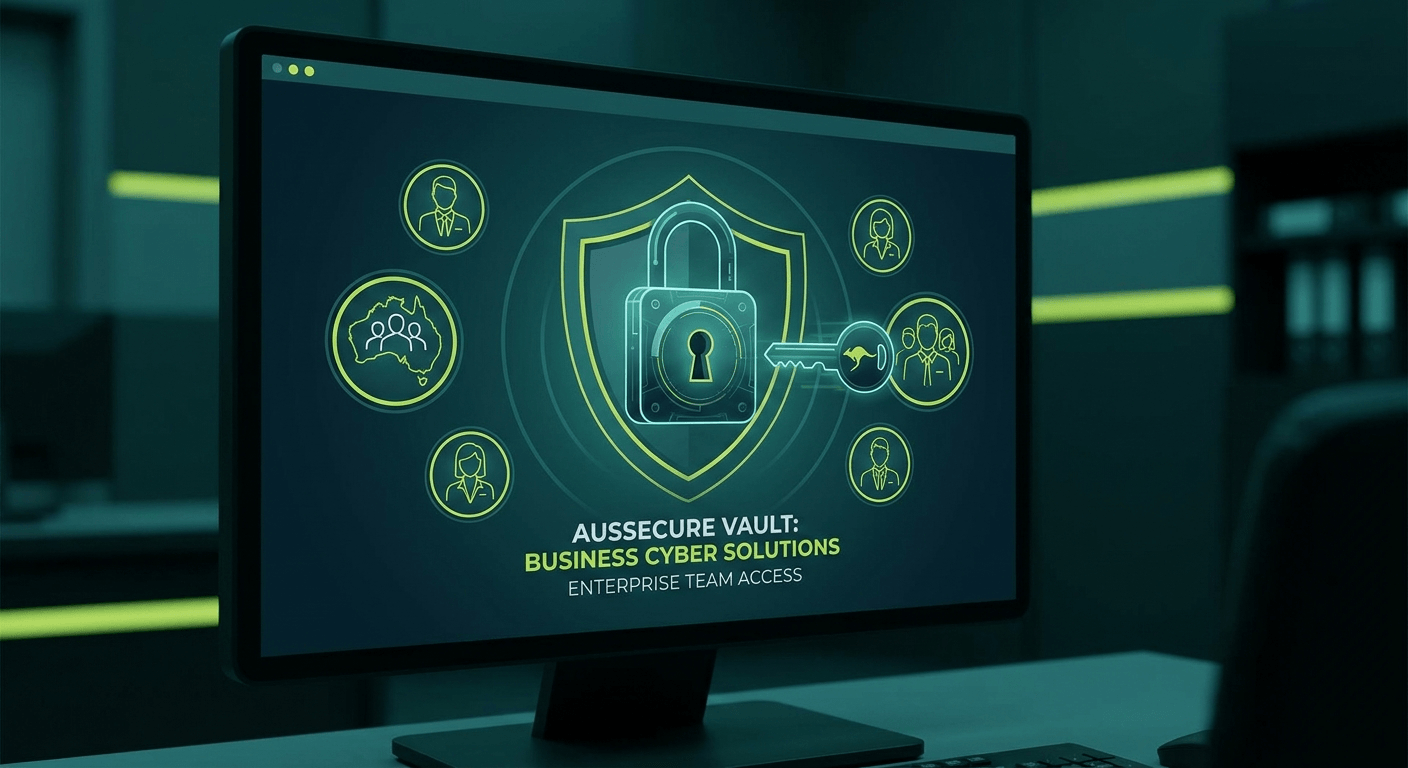
For businesses, the key feature is team vaulting. You can store shared credentials (like your social media accounts or software licences) and give specific team members access without ever revealing the actual password. When someone leaves the business, you revoke their access rather than manually resetting 40 accounts.
Business vs Personal Password Managers
Personal password managers like the free tier of Bitwarden are great for individuals, but they lack the controls that businesses need. Business-focused plans from providers like 1Password Teams, Bitwarden for Business, and LastPass Teams offer:
- Centralised admin controls
- Role-based access so you control who sees what
- Activity logs and audit trails
- SSO and directory integration
- Policy enforcement for password strength and MFA requirements
We are not recommending one over another here. All three are solid options. Compare pricing, your existing software stack, and how well they integrate with your identity provider before committing.
How to Set Up a Password Manager for Your Team (Step by Step)
- Choose your platform. Pick a business tier that fits your team size. Most providers offer free trials so you can test before you buy.
- Create your organisation account. The admin registers the business account and sets the master policies: minimum password length, MFA requirements, and session timeouts.
- Invite your team. Send invitations via email. Most platforms onboard new users in under five minutes.
- Create shared vaults. Organise vaults by department or function (Finance, HR, Marketing). Assign team members to the relevant vaults only.
- Set access permissions. Decide who can view, edit, or share each vault. Least privilege is the guiding principle: give people access to what they need, nothing more.
- Install the browser extension and apps. Roll this out to all team devices. Most managers support Chrome, Edge, Firefox, and Safari, plus iOS and Android apps.
How to Migrate Existing Passwords
Most password managers include an import tool. You can export passwords from your browser (Chrome or Edge) as a CSV file, then import that directly into your new vault. Do this carefully:
- Export from browser settings under “Passwords”
- Complete the import from a secure, trusted device
- Delete the CSV file immediately after the import is complete
- Review the imported credentials and remove any that are outdated or duplicated
If your team has passwords scattered across spreadsheets, assign someone a half-day to consolidate them before migration. It is worth the effort.
How to Share Credentials Securely Within Your Team
Stop emailing passwords. Full stop. Password managers have built-in sharing that is encrypted end-to-end. To share a credential securely:
- Add it to a shared vault that the relevant team member can access
- Or use the secure share feature (available in most platforms) to send a one-time encrypted link
The recipient never sees the raw password if you choose the “view only” permission. They can use the credential through the browser extension without it ever appearing in plain text. This also means credentials do not sit in anyone’s inbox or chat history.
Using a Password Manager on Mobile
Every major business password manager has a mobile app for iOS and Android. Once installed, the setup is straightforward:
- Enable autofill in your phone settings (Settings > Passwords > AutoFill on iPhone, or Autofill Service on Android)
- Select your password manager as the default autofill provider
- Use biometrics (Face ID or fingerprint) to unlock the vault instead of typing your master password
Your team can then log in to business apps on their phones securely, without sharing passwords over chat or SMS.
How Copilot and AI Fit Into This
A question we hear often: can Copilot store or manage passwords? The short answer is no. Microsoft Copilot and AI tools generally are not password managers and should never handle credentials directly.
Where AI genuinely helps is in the policy layer. Copilot can help you draft a password policy for your business: defining minimum requirements, rotation schedules, rules around shared accounts, and what staff must do if they suspect a breach. A written policy is something your auditor, your insurer, and your new starters will all thank you for.
Pairing Your Password Manager with MFA
A password manager handles the “something you know” part of security. Multi-factor authentication (MFA) adds the “something you have” layer. Together, they are significantly more effective than either alone.
Most password managers can store your TOTP (time-based one-time password) codes alongside the credentials they protect. This is convenient, but there is a trade-off: if someone gains access to your vault, they also have your MFA codes. For higher-risk accounts such as banking and admin portals, use a separate authenticator app like Microsoft Authenticator or Google Authenticator.
Enable MFA on the password manager itself first. That is non-negotiable.
Frequently Asked Questions
Is a password manager safe to use for business?
Yes. Reputable business password managers use AES-256 encryption and zero-knowledge architecture, meaning even the provider cannot see your passwords. They are regularly independently audited and are significantly safer than spreadsheets, browsers, or memory.
What happens if I forget my master password?
Most business managers have account recovery options through an admin. Set these up during onboarding, not after a crisis has already occurred.
Can we use the same password manager for personal and work accounts?
It is better to keep them separate. Many business plans allow a personal vault alongside the business vault, giving your team the benefit without mixing credentials.
How much does it cost?
Business plans typically range from $3 to $8 AUD per user per month. That is a small investment compared to the cost of a credential breach or the time lost to manual password resets.
A password manager is one step toward a stronger security posture. A complete cybersecurity programme covers identity, endpoints, email, and ongoing monitoring. If you want a team that handles all of that for you, book a call with the Otto IT cybersecurity team and ask about our Managed Cyber Security Services.
managed it support articles
Related Blog Articles
Discover more insights to optimise your business with the latest IT trends and best practices. Stay ahead of the curve by learning how to leverage cutting-edge technology for success. Explore expert advice and valuable guidance to navigate the evolving world of IT solutions