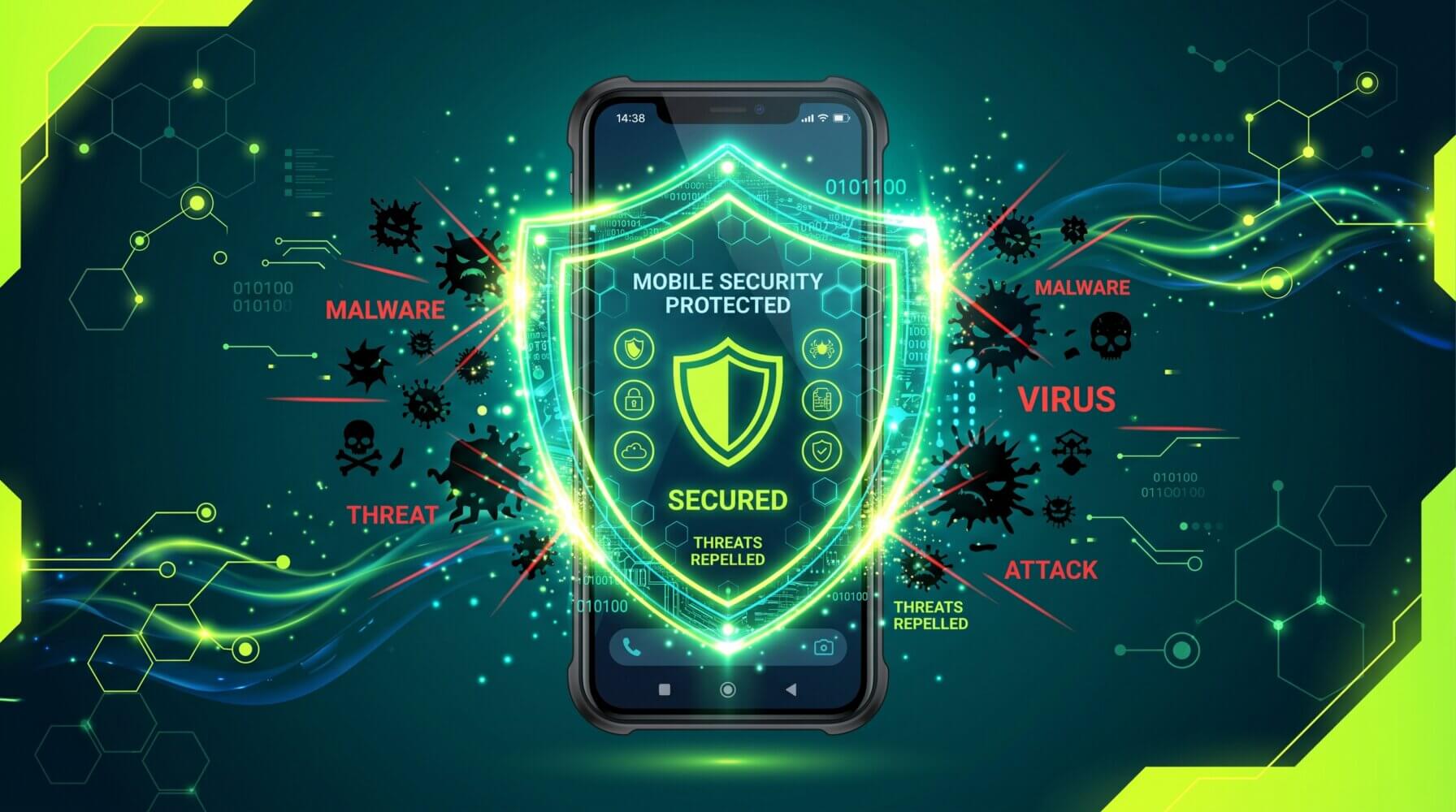
Smartphones are now central to how Australian business people work. They carry email, contacts, documents, two-factor authentication codes, and often direct access to business systems. This makes them a valuable target for attackers and a significant risk if not properly secured.
This guide explains what threats your business smartphone faces and the practical steps you can take to protect it.
What Can Malware Do to Your Phone?
Mobile malware is less common than malware on Windows computers, but it does exist and can cause real harm. Malware on a smartphone can:
- Steal login credentials and banking information
- Intercept SMS messages, including 2FA codes
- Record calls or activate the microphone without your knowledge
- Access your camera
- Track your location
- Access and exfiltrate files stored on the device
- Send messages or make calls that charge premium rates
Beyond malware, smartphones face risks from phishing attacks delivered via SMS (smishing), rogue Wi-Fi networks, physical theft, and poorly secured apps that expose your data.
Step 1: Keep Your Operating System Updated
Software updates are the single most important security measure for any device. Apple and Google regularly release iOS and Android security patches that fix vulnerabilities before attackers can widely exploit them. Delaying updates leaves known vulnerabilities unpatched.
Enable automatic updates on your phone:
- iPhone: Settings > General > Software Update > Automatic Updates > enable all options
- Android: Settings > Software Update > Download and install (path varies by manufacturer)
Step 2: Only Install Apps from Official Stores
The App Store (iOS) and Google Play Store (Android) both review apps for security before listing them, though malicious apps do occasionally slip through. Apps installed from outside these stores (known as sideloading) bypass these checks entirely and carry significantly higher risk.
On iPhones, sideloading requires deliberate configuration steps and is rare in standard use. On Android, sideloading is easier and more common. Avoid enabling “Install unknown apps” in your Android security settings for any app other than one you have a specific and verified reason to trust.
Before installing any app, check the developer, read recent reviews, and check what permissions it requests. An app that asks for access to your contacts, camera, microphone, or location without a clear reason should be avoided.
Step 3: Use a Strong Lock Screen
Set a strong PIN (at least six digits), a passphrase, or biometric authentication (fingerprint or Face ID) on your phone. This is your first line of defence if your phone is lost or stolen.
Avoid using simple patterns or four-digit PINs that are easy to guess from smudges on the screen. Set your screen to lock automatically after one or two minutes of inactivity.
Step 4: Enable Remote Wipe
If your phone is stolen or lost, remote wipe allows you to erase all data on the device from another device or computer.
- iPhone: Enabled through Find My. Go to appleid.apple.com to remotely erase your device.
- Android: Enabled through Find My Device at android.com/find. Requires a Google account to be set up on the device.
For business phones managed through Microsoft Intune or another MDM (Mobile Device Management) platform, your IT administrator can remotely wipe the device and selectively wipe only the business data if you have a dual-profile setup.
Step 5: Use a VPN on Public Wi-Fi
Public Wi-Fi networks in cafes, airports, hotels, and conference centres are convenient but potentially insecure. Attackers can intercept unencrypted traffic on public networks or set up rogue hotspots with legitimate-sounding names to capture your data.
When using public Wi-Fi for work, use a VPN (Virtual Private Network) to encrypt your internet traffic. Your organisation may provide a corporate VPN. If not, reputable commercial VPN services are available, though quality varies significantly – research before choosing one.
Step 6: Be Alert to SMS Phishing (Smishing)
Phishing attacks increasingly arrive via SMS, not just email. Common smishing messages impersonate Australia Post, toll road operators, the ATO, banks, and package delivery services. They typically ask you to click a link to resolve an issue or pay an outstanding amount.
Apply the same scepticism to unexpected SMS messages as you would to suspicious emails. Do not click links in SMS messages from unknown senders. If you receive a message claiming to be from your bank, go directly to your bank’s app or website rather than clicking the link in the message.
Step 7: Review App Permissions Regularly
Over time, apps accumulate permissions you may have granted once without thinking. Periodically review what permissions each app has access to.
- iPhone: Settings > Privacy & Security – each category shows which apps have access
- Android: Settings > Apps > [App Name] > Permissions
Revoke permissions that apps do not genuinely need to function. A torchlight app does not need access to your contacts. A game does not need your location.
Step 8: Enable Full-Device Encryption
iPhones are encrypted by default when you set a passcode. Android phones running Android 6.0 and above are also encrypted by default in most cases. To verify, check Settings > Security and look for encryption status.
Encryption protects the data on your phone if someone attempts to access it by physically connecting it to a computer and bypassing the lock screen.
What About Antivirus Apps for Phones?
On iPhones, traditional antivirus apps have limited effectiveness due to Apple’s sandboxing restrictions. The best protection on iOS is keeping the OS updated and being careful about what you click and install.
On Android, reputable mobile security apps from vendors like Bitdefender, Kaspersky, or ESET provide additional protection, including malware scanning, phishing protection, and anti-theft features. These are more relevant for Android devices used in business environments.
For businesses managing a fleet of phones, a Mobile Device Management solution provides centralised control over security settings, app installation, and remote wipe capabilities. For information on mobile device management and business cybersecurity, visit the Otto IT cybersecurity services page. For specific advice on your business devices, contact the Otto IT team.
Summary
Protecting your business smartphone requires consistent habits rather than any single tool. Keep your OS updated, only install apps from official sources, use a strong lock screen and remote wipe, be cautious on public Wi-Fi, review app permissions regularly, and treat unexpected SMS messages with the same scepticism as phishing emails.
If your business needs help getting the most out of Microsoft 365 or keeping your IT running smoothly, talk to the Otto IT team.
Frequently Asked Questions
How long does it take to implement secure business smartphone for a small business?
Implementation timelines vary based on your environment size and complexity. Most small to medium-sized Australian businesses can expect an initial rollout to take anywhere from a few days to several weeks, depending on the scope. Partnering with an experienced managed IT provider helps streamline the process and reduces disruption to day-to-day operations.
What are the ongoing costs associated with secure business smartphone?
Costs depend on your organisation’s size, existing infrastructure, and the level of support you require. Many modern solutions use subscription-based pricing, which makes ongoing costs predictable and easier to budget. We recommend requesting a scoped proposal tailored to your specific environment to get an accurate figure.
Do I need an in-house IT team to manage secure business smartphone?
Not necessarily. Many organisations outsource this to a managed IT services provider, which gives you access to specialist expertise without the overhead of a full-time hire. A good provider will handle setup, monitoring, updates, and support on your behalf, freeing your team to focus on core business activities.
Is secure relevant for non-technical industries like law, accounting, or healthcare?
Absolutely. Non-technical industries often have the most to gain, as they handle sensitive client data and face strict compliance and regulatory requirements. Solutions in this space are designed to be accessible and user-friendly, so your staff do not need a technical background to benefit from them.
How do I know if my current approach is adequate?
The best starting point is a technology assessment or independent audit conducted by a qualified IT professional. This identifies gaps in your current setup and produces a prioritised list of improvements. Otto IT offers complimentary assessments for businesses looking to understand their technology posture and where to focus next.
managed it support articles
Related Blog Articles
Discover more insights to optimise your business with the latest IT trends and best practices. Stay ahead of the curve by learning how to leverage cutting-edge technology for success. Explore expert advice and valuable guidance to navigate the evolving world of IT solutions