SharePoint is one of the most powerful tools in Microsoft 365 and also one of the most underused. Many businesses that pay for Microsoft 365 use SharePoint as little more than a file storage location, missing out on its capabilities for team collaboration, knowledge management, and business process automation.
This guide covers how to use SharePoint effectively for team collaboration.
What Is SharePoint?
SharePoint is Microsoft’s platform for team sites, document libraries, and intranets. In a Microsoft 365 context, SharePoint works closely with Teams — every Microsoft Team has a SharePoint site behind it where its files are stored. You can also access SharePoint directly at your organisation’s SharePoint URL (typically yourcompany.sharepoint.com).
SharePoint organises content into sites. Team sites are the most common type for collaboration — each team or project has its own site with document libraries, pages, lists, and other resources. Communication sites are used for company-wide information sharing, like an intranet.
Understanding Document Libraries
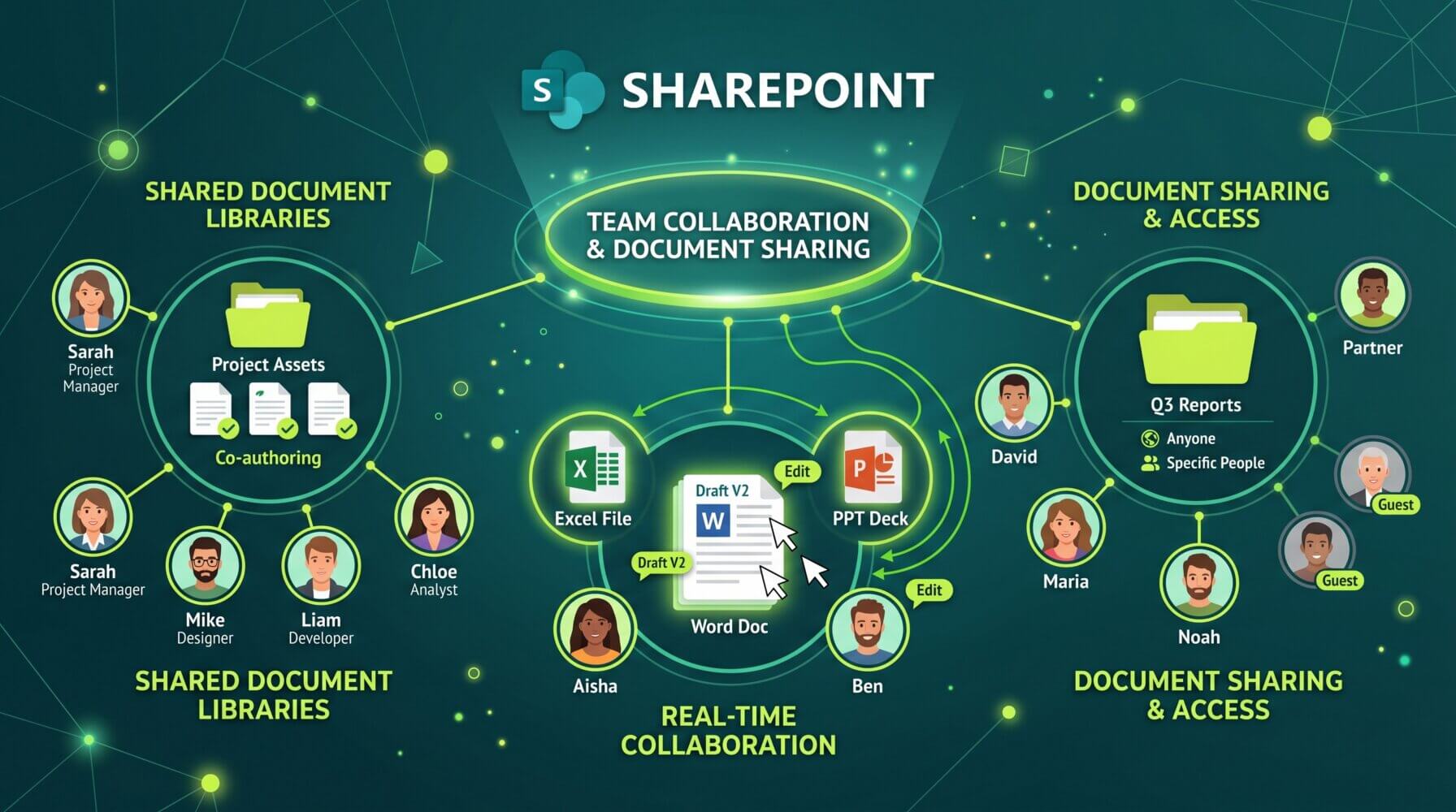
Document libraries are where files are stored in SharePoint. They work similarly to folders on a shared drive, but with important advantages:
- Automatic versioning — every time a file is saved, a new version is created and the history is retained
- Metadata — you can tag documents with custom properties like document type, project, or client for powerful filtering and search
- Check-out and check-in — prevent conflicting edits by checking out a document before editing it
- Permission management — control who can view, edit, or manage specific libraries or folders
- Co-authoring — multiple users can work on the same document at the same time
When you create a Microsoft Team, a SharePoint document library is automatically created behind it. Files you add to a Teams channel appear in the corresponding SharePoint library.
Setting Up a SharePoint Team Site
To create a SharePoint team site, go to sharepoint.com and click Create site. Choose Team site, enter a name, and configure the privacy settings (private or public within your organisation).
Structure your document library with folders that match how your team thinks about their work. Avoid creating too many levels of nested folders — a flat structure with good naming and metadata is easier to navigate than a deep folder hierarchy.
Using SharePoint Lists
SharePoint Lists are a powerful but often overlooked feature. A list is essentially a database-style table with rows and custom columns. You can use lists to track:
- Project status and milestones
- Asset registers and inventory
- Contact directories
- Issue and risk registers
- Approval workflows
Lists can be viewed as a spreadsheet, as cards, or as a calendar. They can be filtered, sorted, and grouped by any column. Users with appropriate permissions can add, edit, or view items depending on the list settings.
SharePoint Lists can also be integrated with Power Automate to create automated workflows, such as sending an approval request when a new item is added or notifying a team member when a status changes.
SharePoint Pages for Team Communication
SharePoint sites include a Pages feature that lets you build rich, formatted pages for communicating information to your team. Use pages to create:
- A team homepage with quick links, announcements, and news
- Process documentation and how-to guides
- Project status updates with embedded charts and task lists
- Onboarding resources for new team members
Pages support a range of web parts including text, images, file viewers, news posts, Planner boards, and Power BI reports. You do not need to know how to code to build useful, professional-looking SharePoint pages.
Managing Permissions
SharePoint’s permission system lets you control exactly who can see and edit what. The three default permission levels are:
- Owner: Full control, including managing permissions
- Member: Can add, edit, and delete content
- Visitor: Can view content only
You can set permissions at the site level, library level, folder level, or even at the individual file level. Keep permissions as simple as possible — overly complex permission structures are difficult to maintain and can lead to security gaps.
Regularly review who has access to your SharePoint sites, especially for sensitive information. The SharePoint admin centre provides access reports that show who has accessed what content.
Integrating SharePoint with Teams
The most seamless way to use SharePoint is through Microsoft Teams. Files stored in Teams channels are stored in SharePoint automatically. You can add SharePoint document libraries, lists, and pages as tabs in Teams channels, bringing your team’s SharePoint content directly into the communication tool they use every day.
This integration means most team members may never need to navigate to SharePoint directly. They access all the same content through the familiar Teams interface.
For businesses looking to improve how their teams manage documents and collaborate, the Otto IT Microsoft 365 services page has more information. For help designing and implementing a SharePoint structure for your business, contact the Otto IT team.
Summary
SharePoint is a mature and capable collaboration platform that goes well beyond file storage. Document libraries with versioning, SharePoint Lists for structured data, Pages for team communication, and deep integration with Teams make it a practical foundation for how your team manages information and works together every day.
If your business needs help getting the most out of Microsoft 365 or keeping your IT running smoothly, talk to the Otto IT team.
Frequently Asked Questions
Should I store documents in SharePoint or Microsoft Teams?
Teams document libraries are actually built on top of SharePoint — every Teams channel has a corresponding SharePoint document library behind it. The practical question is where staff prefer to access files. Teams is better for documents that are actively collaborated on within a team context. SharePoint is better for structured document libraries, intranet content, and files that need to be accessed by people across teams. For most businesses, using both in a coordinated way is the right answer, with Teams for team-level documents and SharePoint for organisation-wide knowledge.
How do I migrate from a shared network drive to SharePoint without disrupting staff?
The safest approach is a staged migration: run the shared drive and SharePoint in parallel for a period, encourage staff to start using SharePoint for new files, then migrate historical content in batches. Communicate the migration timeline clearly so staff are not hunting for files in two places without knowing which is current. Cleaning up the shared drive before migration — removing obsolete files and reorganising the folder structure — will save significant time and reduce confusion during the transition.
Can external users like clients or contractors access SharePoint?
Yes. SharePoint supports external sharing at the site, folder, or file level, and you can control the sharing settings per site. External users can be given access via a Microsoft account or a one-time passcode sent to their email. Your IT administrator can configure the level of external sharing permitted across your tenant, and individual site owners can manage sharing within those limits. For security-sensitive environments, external sharing can be restricted or disabled entirely.
How do SharePoint permissions work, and who should manage them?
SharePoint uses a permissions hierarchy: tenant administrators set organisation-wide policies, site owners manage permissions at the site level, and individual users can be granted permissions to specific documents or folders within those sites. The most common mistake is over-permissioning — giving everyone access to everything because it is easier to manage. Permissions should reflect the principle of least privilege: users get access to what they need for their role, nothing more. In most businesses, an IT administrator should own the governance of SharePoint permissions, with site owners managing day-to-day access requests.
managed it support articles
Related Blog Articles
Discover more insights to optimise your business with the latest IT trends and best practices. Stay ahead of the curve by learning how to leverage cutting-edge technology for success. Explore expert advice and valuable guidance to navigate the evolving world of IT solutions