Every employee should know the baseline warning signs of a phishing email. But here’s the uncomfortable truth: AI-generated phishing attacks are now indistinguishable from legitimate emails by look alone. This guide covers both: the traditional signals that still catch the majority of phishing attempts, and the specific characteristics of AI-powered phishing that require technical controls – not just trained eyes – to stop. Read it alongside our guide on AI-powered phishing for the full picture.
Phishing emails are the most common starting point for cyber attacks on Australian businesses. Despite years of awareness campaigns, they remain highly effective because they have become increasingly convincing. The emails people fell for five years ago were obviously suspicious. The ones circulating today often look indistinguishable from legitimate messages.
This guide explains what to look for, how to verify suspicious emails, and what to do if you think you have been targeted.
What Is a Phishing Email?
A phishing email is a fraudulent message designed to trick you into doing something that benefits the attacker. The goal might be to steal your login credentials, get you to transfer money, install malware on your computer, or hand over sensitive business information.
Phishing emails typically impersonate a trusted sender, such as your bank, Microsoft, the Australian Taxation Office, a courier company, or a colleague. The message creates a sense of urgency to pressure you into acting before you stop to think.
Warning Sign 1: The Sender’s Email Address Does Not Match the Organisation
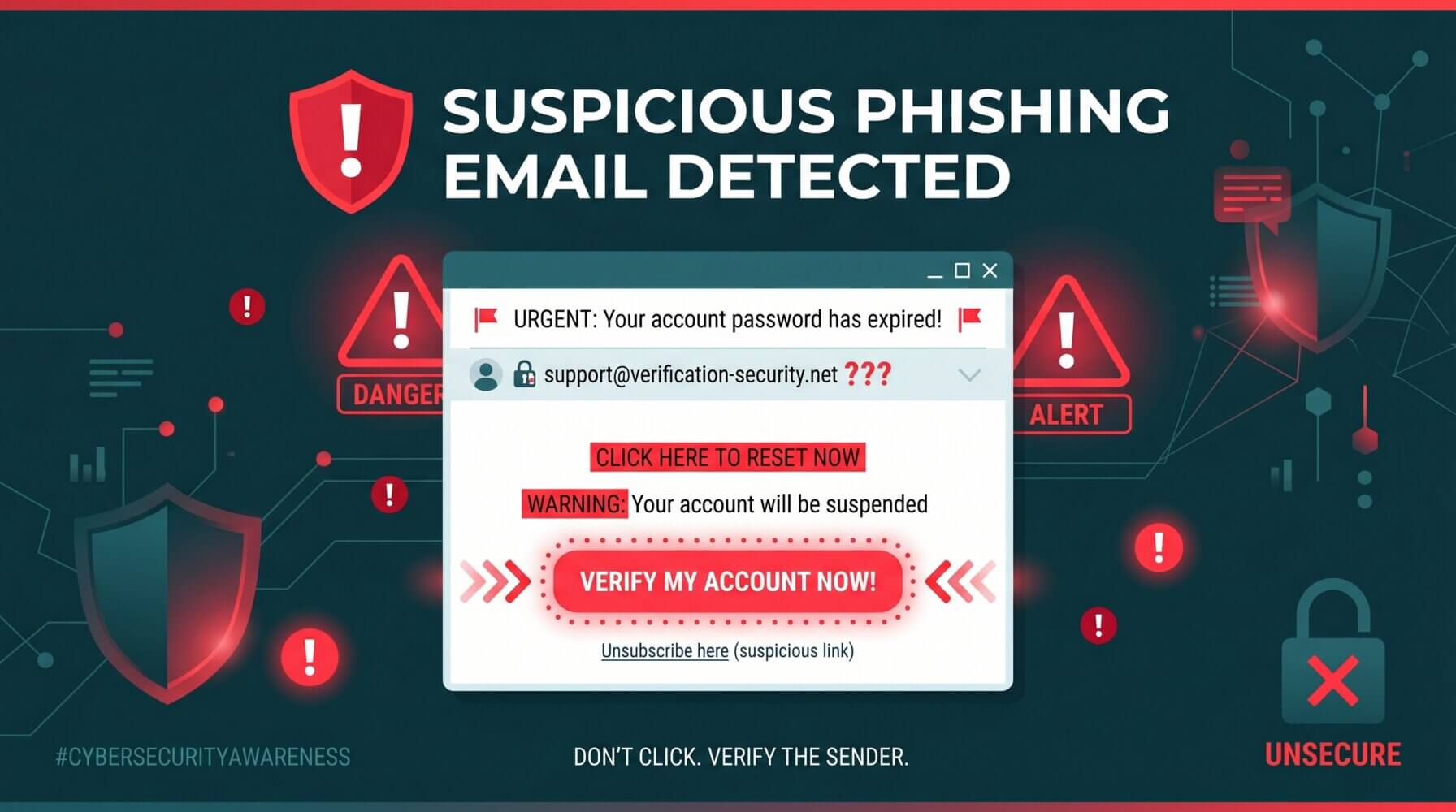
The display name in an email can say anything. “Microsoft Support” or “ANZ Bank” can appear as the sender’s name even if the actual email address is completely unrelated. Always check the actual email address, not just the display name.
Look for subtle misspellings or unusual domains. An email from [email protected] (with a zero instead of an O) or [email protected] is not legitimate, regardless of how official it looks.
In Outlook, hover your mouse over the sender’s name to see the actual email address. On mobile, tap the sender’s name to expand the full address.
Warning Sign 2: Urgency or Threat
Phishing emails frequently create pressure. Phrases like “Your account will be suspended in 24 hours”, “Immediate action required”, or “Your payment has been declined – act now” are designed to bypass your critical thinking and push you into clicking before you can pause and evaluate.
Any email that demands immediate action on a sensitive matter – account access, financial transactions, password resets – should be treated with heightened scepticism. Legitimate organisations rarely demand you act within hours or threaten account closure without prior communication.
Warning Sign 3: Unexpected Requests
If an email asks you to do something you were not expecting – click a link to verify your account, download an attachment you were not waiting for, or provide login credentials – treat it as suspicious until verified.
This includes emails that appear to come from colleagues. Business Email Compromise (BEC) attacks impersonate executives or trusted colleagues to request wire transfers, gift card purchases, or sensitive information. If your CEO unexpectedly emails you asking for an urgent bank transfer, call them directly before acting.
Warning Sign 4: Generic Greetings
Phishing emails sent in bulk often use generic salutations like “Dear Customer”, “Dear Account Holder”, or “Hello User”. Legitimate companies that already have a relationship with you will typically address you by name.
This is not a definitive indicator on its own – some legitimate bulk emails do use generic greetings – but it is worth noting as part of your overall assessment.
Warning Sign 5: Suspicious Links
Before clicking any link in an email, hover your mouse over it to preview the destination URL in the status bar at the bottom of your email client or browser. If the URL does not match the organisation it claims to come from, do not click it.
Watch for URLs that use the organisation’s name as a subdomain of a different domain. For example, microsoft.suspicious-domain.com is not Microsoft – it is suspicious-domain.com with “microsoft” prepended as a subdomain.
Shortened URLs (such as bit.ly links) in business emails should also raise suspicion, as they hide the actual destination.
Warning Sign 6: Unexpected Attachments
Never open an attachment you were not expecting, even if it appears to come from someone you know. Malware is frequently distributed as Word documents, Excel files, PDFs, or ZIP archives that claim to be invoices, delivery notifications, or contract documents.
If a colleague sends you an unexpected attachment, contact them via a different channel (phone or Teams) to confirm they actually sent it before opening it.
Warning Sign 7: Poor Spelling and Grammar
While sophisticated phishing emails are now well-written, many still contain noticeable errors. These may range from minor awkwardness to obvious grammatical mistakes. Poor English, odd phrasing, or unusual formatting can indicate a non-native speaker crafting the email or an automated message with errors.
What to Do If You Are Not Sure
If you receive an email and are unsure whether it is legitimate, do not click any links or open any attachments. Instead:
- Do not reply to the email
- Go directly to the organisation’s website by typing the URL into your browser manually
- Call the organisation using a phone number from their official website, not from the email
- Report the suspicious email to your IT team or IT provider
In Microsoft Outlook, you can report phishing emails using the built-in Report Message add-in. This helps your organisation’s email filtering improve over time.
What to Do If You Clicked a Link or Opened an Attachment
If you suspect you have clicked on a phishing link or opened a malicious attachment, act quickly:
- Disconnect your computer from the internet (unplug the Ethernet cable or turn off Wi-Fi)
- Contact your IT team or provider immediately
- Change your passwords from a different, unaffected device
- Do not attempt to fix it yourself – let your IT team assess the extent of any compromise
Speed matters when responding to a potential compromise. Reporting immediately gives your IT team the best chance of limiting the impact.
Training Your Team
Technical controls like spam filters and endpoint protection are important, but human awareness is equally critical. Regular phishing awareness training is one of the most cost-effective security investments a business can make.
For information on cybersecurity awareness training and protective measures for Australian businesses, visit the Otto IT cybersecurity services page. If you have concerns about your current email security or want to improve your team’s ability to recognise threats, contact the Otto IT team.
Summary
Phishing emails are designed to trick you by creating urgency, impersonating trusted senders, and disguising malicious links and attachments. Check the actual email address, hover over links before clicking, treat unexpected requests with scepticism, and report anything suspicious to your IT team immediately.
If your business needs help getting the most out of Microsoft 365 or keeping your IT running smoothly, talk to the Otto IT team.
Frequently Asked Questions
How long does it take to implement spot phishing email for a small business?
Implementation timelines vary based on your environment size and complexity. Most small to medium-sized Australian businesses can expect an initial rollout to take anywhere from a few days to several weeks, depending on the scope. Partnering with an experienced managed IT provider helps streamline the process and reduces disruption to day-to-day operations.
What are the ongoing costs associated with spot phishing email?
Costs depend on your organisation’s size, existing infrastructure, and the level of support you require. Many modern solutions use subscription-based pricing, which makes ongoing costs predictable and easier to budget. We recommend requesting a scoped proposal tailored to your specific environment to get an accurate figure.
Do I need an in-house IT team to manage spot phishing email?
Not necessarily. Many organisations outsource this to a managed IT services provider, which gives you access to specialist expertise without the overhead of a full-time hire. A good provider will handle setup, monitoring, updates, and support on your behalf, freeing your team to focus on core business activities.
Is spot relevant for non-technical industries like law, accounting, or healthcare?
Absolutely. Non-technical industries often have the most to gain, as they handle sensitive client data and face strict compliance and regulatory requirements. Solutions in this space are designed to be accessible and user-friendly, so your staff do not need a technical background to benefit from them.
How do I know if my current approach is adequate?
The best starting point is a technology assessment or independent audit conducted by a qualified IT professional. This identifies gaps in your current setup and produces a prioritised list of improvements. Otto IT offers complimentary assessments for businesses looking to understand their technology posture and where to focus next.
managed it support articles
Related Blog Articles
Discover more insights to optimise your business with the latest IT trends and best practices. Stay ahead of the curve by learning how to leverage cutting-edge technology for success. Explore expert advice and valuable guidance to navigate the evolving world of IT solutions