Multi-factor authentication (MFA) is no longer optional for Australian businesses – it’s a core requirement under the Essential Eight, expected by cyber insurers, and the single most effective control against account compromise. But most businesses treat MFA as a technical setup task when it should be a policy and governance decision. This guide goes beyond app tutorials to cover what a business-wide MFA strategy actually looks like: who must use it, on what systems, enforced how, and verified how often.
Passwords alone are no longer sufficient protection for your business accounts. Data breaches, credential stuffing attacks, and phishing campaigns mean that stolen or leaked passwords are a constant threat. Two-factor authentication (2FA), also called multi-factor authentication (MFA), is one of the most effective defences available, and setting it up across your key accounts takes very little time.
This guide covers how to set up 2FA on the accounts and platforms most commonly used by Australian businesses.
What Is Two-Factor Authentication?
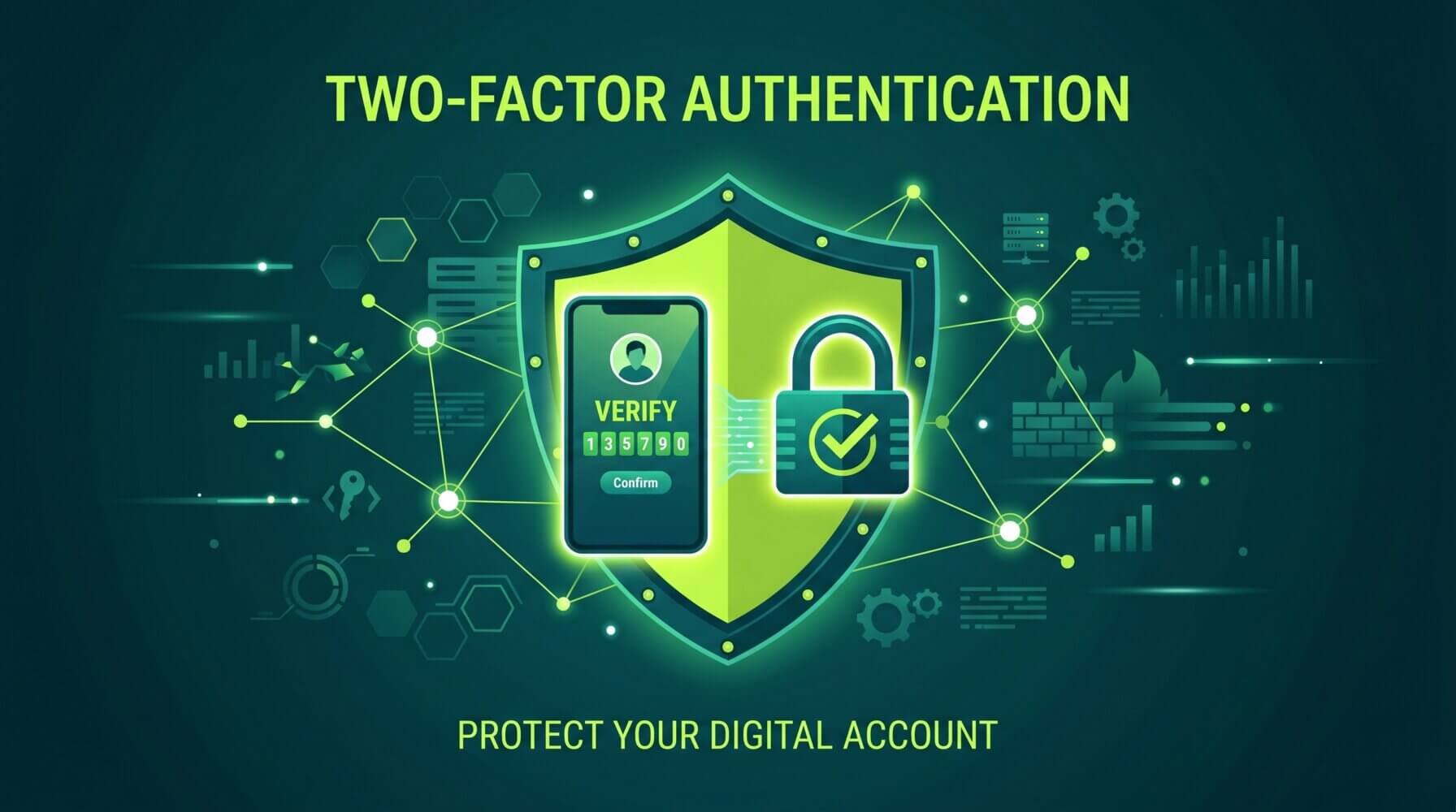
Two-factor authentication adds a second verification step to your login process. Instead of just entering a password, you also need to prove your identity through a second method – typically a code from an authenticator app, a push notification, or a text message.
Even if an attacker obtains your password, they cannot access your account without also having the second factor. For most attack scenarios, this is enough to stop them completely.
The three types of authentication factors are:
- Something you know: Password, PIN
- Something you have: Phone with authenticator app, hardware security key
- Something you are: Fingerprint, Face ID
2FA means combining at least two of these. The most common combination is password (something you know) plus authenticator app (something you have).
Which 2FA Method Should You Use?
Authenticator apps are more secure than SMS codes. SMS-based 2FA is vulnerable to SIM-swapping attacks, where an attacker convinces your phone carrier to transfer your number to a new SIM they control. While SMS-based 2FA is still far better than no 2FA, if you have the choice, use an authenticator app.
Recommended authenticator apps include:
- Microsoft Authenticator (recommended for Microsoft 365 users)
- Google Authenticator
- Authy (supports multi-device backup)
- 1Password (if you use 1Password as your password manager)
Hardware security keys (such as YubiKey) provide the strongest form of 2FA and are worth considering for high-value accounts like your domain administrator account or financial accounts.
Setting Up 2FA on Microsoft 365
Go to mysignins.microsoft.com and sign in with your Microsoft 365 work account. Click Security info, then Add sign-in method. Choose Authenticator app and follow the steps to scan a QR code with your chosen app.
For administrators rolling out MFA across an organisation, the recommended approach is to enable Security Defaults in the Microsoft Entra admin centre, or to configure Conditional Access policies for more granular control.
Setting Up 2FA on Google Accounts
Go to your Google Account at myaccount.google.com. Click Security in the left sidebar, then 2-Step Verification, and follow the setup wizard. Google supports authenticator apps, SMS, Google prompts, and hardware security keys.
For Google Workspace users, administrators can enforce 2FA for all users in the Admin Console under Security > 2-Step Verification.
Setting Up 2FA on Banking and Financial Accounts
Most Australian banks now offer or require 2FA. Log in to your internet banking portal, navigate to the security settings, and look for options like “Two-Step Verification”, “Secure Message”, or “Transaction Authorisation”. Most banks send codes via SMS, though some now support authenticator apps.
For business banking accounts, contact your bank’s business team to confirm what 2FA options are available and whether you can use an authenticator app rather than SMS.
Setting Up 2FA on Social Media and Business Accounts
Most major platforms support 2FA. Here is where to find it on commonly used platforms:
- LinkedIn: Settings & Privacy > Sign In & Security > Two-step verification
- Facebook/Meta: Settings > Accounts Centre > Password and Security > Two-factor Authentication
- Instagram: Settings > Security > Two-Factor Authentication
- X (Twitter): Settings > Security and account access > Security > Two-factor authentication
- Xero: Xero account settings > Login and security > Two-step authentication
- MYOB: Account settings > Security > Multi-factor authentication
Setting Up 2FA on Your Domain Registrar and Hosting
Your domain registrar and web hosting account are high-value targets because an attacker who gains access could redirect your website, intercept email, or cause significant business disruption. Enable 2FA on these accounts as a priority.
Common domain registrars like GoDaddy, Crazy Domains, and VentraIP all support 2FA in their account security settings.
Managing 2FA When You Change Phones
One common concern with authenticator apps is what happens when you get a new phone. The answer depends on the app you use.
Microsoft Authenticator supports cloud backup, which can restore your accounts to a new device. Authy stores accounts in the cloud tied to your phone number. Google Authenticator now supports Google account backup. If you use an app without backup, you will need to manually re-link each account using recovery codes before switching devices.
As a best practice, when you first set up 2FA on any account, save the recovery codes provided during setup. Store them in a secure location such as a password manager. These codes allow you to regain access if your authenticator app is unavailable.
Prioritise These Accounts First
If you are setting up 2FA across multiple accounts, prioritise in this order:
- Microsoft 365 / work email
- Financial accounts (banking, accounting software, payment platforms)
- Domain registrar and web hosting
- Cloud infrastructure (Azure, AWS, Google Cloud)
- Social media business accounts
- Personal email (which is often used for password resets on everything else)
For businesses looking to implement MFA across their organisation as part of a broader security strategy, the Otto IT cybersecurity services page has information on what is involved. For specific advice on your setup, contact the Otto IT team.
Summary
Two-factor authentication is one of the most effective security measures you can implement for your business accounts. Use an authenticator app where available, prioritise high-value accounts first, and save recovery codes when you set up each account. Enabling 2FA across your key accounts is a small time investment that provides substantial protection.
If your business needs help getting the most out of Microsoft 365 or keeping your IT running smoothly, talk to the Otto IT team.
Frequently Asked Questions
How long does it take to implement Australian businesses complete for a small business?
Implementation timelines vary based on your environment size and complexity. Most small to medium-sized Australian businesses can expect an initial rollout to take anywhere from a few days to several weeks, depending on the scope. Partnering with an experienced managed IT provider helps streamline the process and reduces disruption to day-to-day operations.
What are the ongoing costs associated with Australian businesses complete?
Costs depend on your organisation’s size, existing infrastructure, and the level of support you require. Many modern solutions use subscription-based pricing, which makes ongoing costs predictable and easier to budget. We recommend requesting a scoped proposal tailored to your specific environment to get an accurate figure.
Do I need an in-house IT team to manage Australian businesses complete?
Not necessarily. Many organisations outsource this to a managed IT services provider, which gives you access to specialist expertise without the overhead of a full-time hire. A good provider will handle setup, monitoring, updates, and support on your behalf, freeing your team to focus on core business activities.
Is Australian relevant for non-technical industries like law, accounting, or healthcare?
Absolutely. Non-technical industries often have the most to gain, as they handle sensitive client data and face strict compliance and regulatory requirements. Solutions in this space are designed to be accessible and user-friendly, so your staff do not need a technical background to benefit from them.
How do I know if my current approach is adequate?
The best starting point is a technology assessment or independent audit conducted by a qualified IT professional. This identifies gaps in your current setup and produces a prioritised list of improvements. Otto IT offers complimentary assessments for businesses looking to understand their technology posture and where to focus next.
managed it support articles
Related Blog Articles
Discover more insights to optimise your business with the latest IT trends and best practices. Stay ahead of the curve by learning how to leverage cutting-edge technology for success. Explore expert advice and valuable guidance to navigate the evolving world of IT solutions