

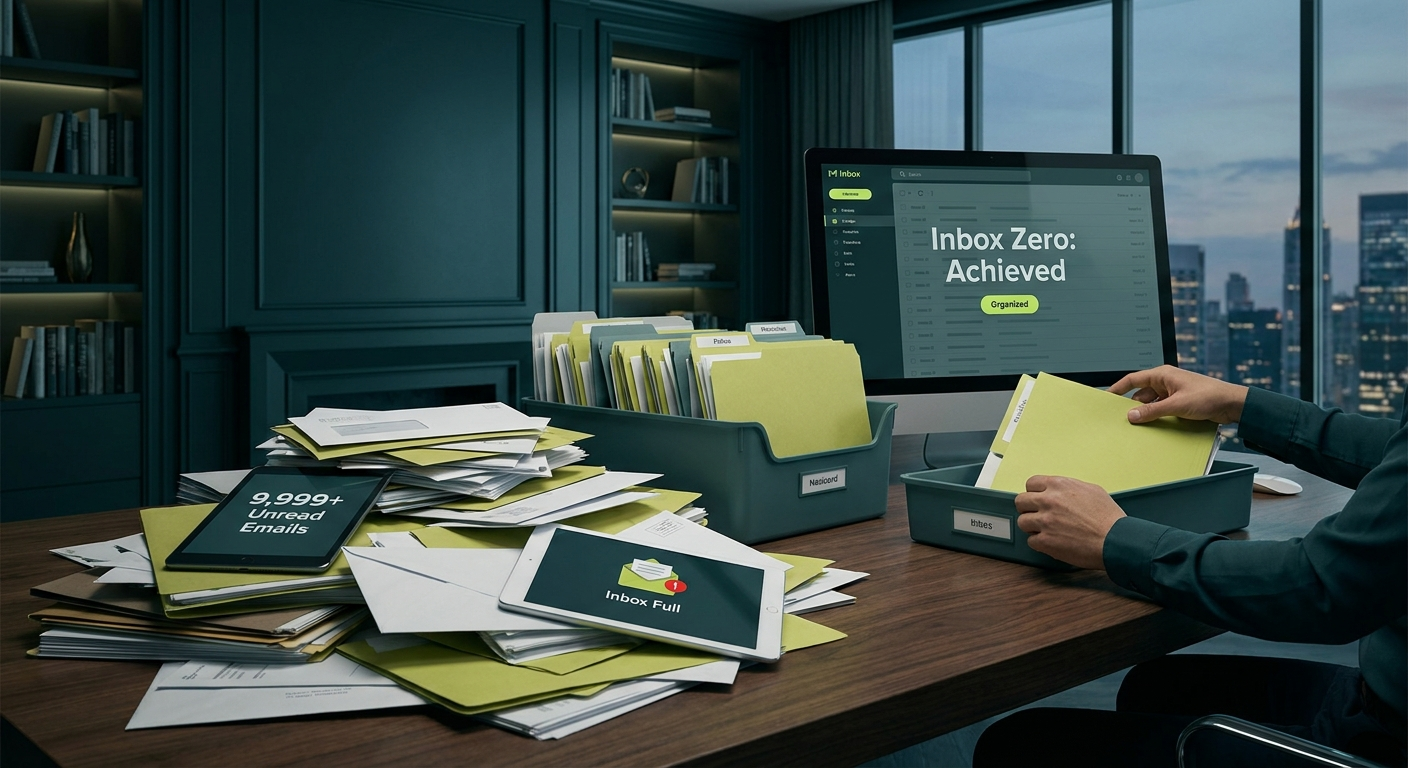
A full mailbox in Outlook stops you from sending or receiving emails and slows down your whole day. The fastest fix is to empty your Deleted Items and Junk Email folders, then archive older emails you want to keep. Read on for a full walkthrough covering every step, from quick wins to long-term habits that prevent it from happening again.
Why a Full Mailbox Causes Real Problems
When your Outlook mailbox hits its storage limit, Outlook blocks both incoming and outgoing emails entirely. Performance also suffers before you reach the hard limit. Outlook has to index and load everything in your mailbox, so the more email you have sitting there, the slower searches become and the longer it takes to sync across your devices.
For Microsoft 365 users, the standard mailbox limit is 50 GB. Some plans include up to 100 GB, and the Microsoft 365 Archive feature can extend storage further. On-premises Exchange limits vary depending on your organisation’s configuration.
How to Check Your Mailbox Size in Outlook
Before you start cleaning, it helps to know how much space you are actually using.
In Outlook on Windows:
- Go to File then Info.
- Select Mailbox Settings or Account Settings.
- Choose your account and look for the storage usage indicator.
Alternatively, right-click on your mailbox name in the left panel, go to Data File Properties, and click Folder Size to see a detailed breakdown by folder.
The Fastest Wins: Empty Deleted Items and Junk Email
These two folders are usually packed with emails you will never need again, yet they still count against your storage limit in full.
Empty Deleted Items:
Right-click on Deleted Items in the left panel and select Empty Folder. Outlook will permanently remove everything inside.
Empty Junk Email:
Right-click on Junk Email and select Empty Folder.
These two steps alone can recover gigabytes of storage in under a minute. Do this first, then reassess.
How to Use Outlook’s Mailbox Cleanup Tool
Outlook includes a built-in tool designed specifically for this task.
- Go to File then Info.
- Click Cleanup Tools, then Mailbox Cleanup.
- From here you can find large items, find old items, empty Deleted Items, and trigger AutoArchive immediately.
The Mailbox Cleanup tool also displays your current mailbox size, giving you a clear picture of how much space you have recovered and how much remains.
How to Find and Delete Large Attachments
Attachments are often the biggest culprit when storage fills up. A single email with a large PDF or video file can consume more space than hundreds of plain text messages.
To find large emails in Outlook:
- Click in the search bar and press Enter to search all folders.
- On the Search tab, click Size, then choose Enormous (larger than 5 MB) or set a custom size range.
- Sort results by size and review each email. Save any attachments you need to OneDrive or a local drive, then delete the email.
You can also add a Size column to your folder view via View settings to keep an eye on large items as they arrive going forward.
How to Archive Old Emails (Manual and AutoArchive)
Archiving moves older emails out of your main mailbox into a separate archive, freeing up server storage while keeping those emails accessible in Outlook.
Manual archive:
- Go to File, then Cleanup Tools, then Archive.
- Choose a folder and a cutoff date. Outlook moves emails older than that date to an archive file.
AutoArchive:
- Right-click a folder and go to Properties, then the AutoArchive tab.
- Enable archiving and set your preferred age threshold. Outlook will handle this automatically going forward.
For Microsoft 365 users, Microsoft also offers Online Archive, which is a separate mailbox in the cloud that does not count against your primary mailbox limit. Your IT team can enable this through the admin centre.
How to Move Emails to a Local PST File (On-Premises)
If your organisation runs on-premises Exchange rather than Microsoft 365, moving emails to a local PST file is a practical way to reduce server mailbox size without deleting anything.
- Go to File, then Account Settings, then Data Files.
- Click Add and create a new .pst file in a location you can access.
- Drag folders or individual emails into the new data file shown in the left panel.
Keep in mind that emails stored in a local PST file are not backed up by your server. Store the PST in a backed-up location, such as a network drive or an approved shared folder, to avoid data loss.
Microsoft 365 Storage Limits and What to Do If You Are Hitting Them
Standard Microsoft 365 Business Basic and Business Standard plans include 50 GB per mailbox. Microsoft 365 Business Premium and enterprise plans often include 100 GB plus access to unlimited Online Archive.
If you are regularly hitting your limit despite cleanup, your options include:
- Enable Online Archive through the Microsoft 365 admin centre to add a separate archive mailbox.
- Upgrade your plan to one that includes a larger mailbox allocation or unlimited archive.
- Talk to your IT provider about archive and retention policies that automatically manage older emails across your team.
How Microsoft Copilot Can Help You Clean Up Faster
Microsoft 365 Copilot adds an intelligent layer to mailbox cleanup that saves significant time. Copilot can identify emails you have not opened in six or more months and suggest what to archive or delete in bulk. It can also summarise long email threads so you can decide whether to keep them without reading every single message.
If your organisation has Copilot enabled, look for cleanup suggestions in the Outlook Copilot sidebar. This is particularly useful for large inboxes where manual review would otherwise take hours.
Long-Term Habits to Keep Your Mailbox Clean
Cleaning up once will not stick if the same habits continue. These practices help you stay on top of storage over time without much ongoing effort.
- Unsubscribe from newsletters you never read rather than deleting each one individually.
- Use OneDrive for file sharing instead of sending large attachments by email.
- Set a monthly reminder to empty Deleted Items and Junk Email folders.
- Enable AutoArchive on folders you want to retain but rarely access.
- Review your Sent Items folder occasionally, as large attachments sent by you also count against your storage limit.
Frequently Asked Questions
What happens when my Outlook mailbox is full?
When your mailbox reaches its storage limit, Outlook blocks both incoming and outgoing emails. You will typically receive a warning notification before this happens, giving you time to clean up before things stop working.
Will archiving delete my emails?
No. Archiving moves emails to a separate archive mailbox or local file. They remain accessible in Outlook and are not permanently deleted.
Can I recover emails I accidentally deleted?
Yes. Emails you delete go to Deleted Items first. If you empty Deleted Items, you can still recover emails for a short period by right-clicking Deleted Items and selecting Recover Deleted Items. After the retention period expires, recovery is no longer possible without a backup.
How often should I clean up my mailbox?
A quick monthly clean of Deleted Items and Junk Email is usually enough for most users. A deeper review of large attachments and old folders every quarter keeps things manageable long-term.
If your team is regularly hitting mailbox limits or you need help managing Microsoft 365 storage across multiple users, Otto IT can help. Get in touch with us to review your current setup, or book a call to talk through your options with one of our team.
managed it support articles
Related Blog Articles
Discover more insights to optimise your business with the latest IT trends and best practices. Stay ahead of the curve by learning how to leverage cutting-edge technology for success. Explore expert advice and valuable guidance to navigate the evolving world of IT solutions