

Editor’s Note (updated June 2026): This guide was written before Microsoft 365 Copilot became widely available in PowerPoint. As of 2026, Copilot can generate entire presentations from a prompt or a Word document, dramatically changing how most Microsoft 365 users approach slide creation. We’re updating this article to include a dedicated Copilot section alongside the manual steps.
Last Update: 2026
2026 update: PowerPoint has continued to evolve, but the biggest shift isn’t just new features, it’s how people use them. In 2026, the most effective presentations prioritise clarity, speed, and relevance over visual flair. With Copilot now a daily tool for many teams, the real opportunity is spending less time building slides and more time sharpening the message behind them. PowerPoint has come a long way from static slides and bullet points. In 2025, it’s not just a presentation tool; it’s a storytelling engine. With Microsoft 365 Copilot now deeply integrated, and a suite of new features that make designing, writing, and presenting easier than ever, there’s no excuse for a dull deck. Here’s how to create a presentation that not only looks stunning but also feels effortless to build.1. Start with a Clear Story (Copilot Can Help)
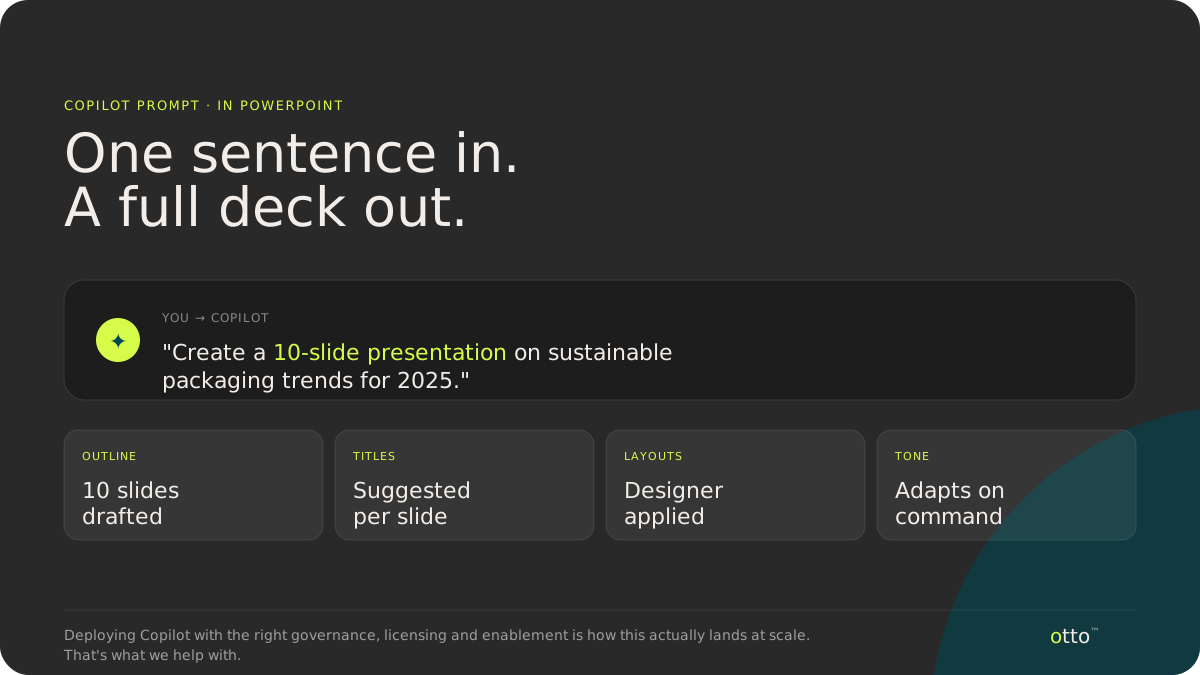
Before you even open PowerPoint, think about your story. What’s the one thing you want your audience to remember? Now, here’s where Copilot steps in. With a simple prompt like: “Create a 10-slide presentation on sustainable packaging trends for 2025.” Copilot will generate a full outline, suggest slide titles, and even draft content. You can tweak the tone, ask it to simplify or expand ideas, and it’ll adapt instantly.How Copilot is actually used in 2026
By 2026, Copilot is less about “creating slides for you” and more about helping you think. High‑performing teams use it to turn rough ideas into structured narratives, workshop notes, long reports, or even email threads can become the foundation of a strong deck. Instead of accepting the first draft Copilot gives you, treat it as a thinking partner. Ask it to challenge your structure, simplify your language, or reframe your story for a different audience. Try prompts like:- Turn this presentation into a five‑slide executive summary focused on outcomes and risks.
- Rewrite this slide for a non‑technical audience.
2. Use Designer to Make It Beautiful (Without Trying)
PowerPoint Designer has been around for a while, but in 2025, it’s smarter. It now understands context better, so if your slide says “Top 3 Marketing Trends,” it’ll suggest layouts that visually highlight a list. You don’t need to be a designer. Just drop in your content, and Designer will offer layout options that look like they came from a creative agency. Pro tip: Use high-quality images and icons from the built-in Microsoft library. It’s royalty-free and beautifully curated.A Note on Design Trends in 2026
The most effective presentations in 2026 are often the simplest. Clean layouts, generous white space, and one clear idea per slide consistently outperform dense, over‑designed decks. Copilot and Designer can generate a lot of content very quickly, but that doesn’t mean it all belongs on the slide. Use AI to draft, then edit ruthlessly. If a slide feels busy, it probably is.3. Animate with Purpose (Not Just for Flash)
Animations can elevate your message, or distract from it. The latest PowerPoint makes it easier to apply subtle, professional animations with just one click. Try the Morph transition to smoothly move between slides or objects. It’s perfect for showing progressions, comparisons, or zooming into details.Design for a Hybrid‑First World
In 2026, most presentations aren’t delivered in a single room. They’re shared over Teams, recorded for later viewing, or presented to a mix of in‑person and remote attendees. That changes how slides need to work. A few practical guidelines:- Use larger fonts than you think you need, especially for charts
- Avoid relying on colour alone to explain meaning
- Keep animations subtle; lag and screen sharing still matter
- Assume your slides may be read without you explaining them
4. Real-Time Collaboration with Comments & Threads
Working with a team? PowerPoint now supports threaded comments and real-time co-authoring. You can tag teammates, resolve feedback, and even see who’s editing what, live. This is especially useful for marketing and customer teams where feedback loops can get messy. Keep everything in one place, and avoid the dreaded “final_final_v3.pptx” chaos.5. Accessibility is No Longer Optional
In 2026, accessible presentations aren’t a “nice to have”, they’re expected. PowerPoint makes this easier than most people realise. Simple habits make a big difference:- Run PowerPoint’s built‑in Accessibility Checker before presenting
- Add alt text to images (Copilot can help draft this)
- Use high‑contrast colour combinations
- Break long text into shorter, clearer slides
6. Use Speaker Coach to Practise Like a Pro
This one’s a game-changer. Speaker Coach listens to your rehearsal and gives feedback on your pace, tone, filler words, and even inclusivity of language. It’s like having a personal presentation coach, without the awkwardness.7. Embed Live Data & Interactive Charts
Need to show real-time sales data or customer feedback? PowerPoint now lets you embed live Excel charts or Power BI dashboards. No more updating numbers manually before every meeting. This is especially powerful for customer and marketing teams who need to present up-to-date metrics.8. Record Once, Share Everywhere
With Record Presentation, you can now create narrated, interactive presentations that feel like videos. Perfect for async updates, onboarding, or customer education. You can even include your webcam feed, annotations, and slide transitions, all recorded in one go.Final Thoughts: PowerPoint Isn’t Just a Tool, it’s a Platform
In 2026, creating a great PowerPoint presentation isn’t about mastering every feature. It’s about using the right tools, especially Copilot, to think more clearly, communicate more simply, and respect your audience’s time. When the story is strong, the slides don’t need to shout. PowerPoint finally makes it easy to focus on what actually matters. PowerPoint has evolved into something far more powerful than a slide deck tool. With Microsoft Copilot now embedded, it’s become a gateway to smarter, faster, and more engaging communication. But here’s the thing, unlocking its full potential isn’t just about knowing the features, it’s about deploying them safely, responsibly, and in a way that fits your business. We help businesses roll out Copilot with confidence. From governance and licensing to change management and user enablement, we make sure organisations can embrace AI without compromising control or clarity. Because when Copilot is deployed well, it doesn’t just make PowerPoint better, it transforms how people work.PowerPoint & CoPilot FAQs
How do I use Microsoft Copilot to create a PowerPoint presentation?
Microsoft Copilot can help you create a PowerPoint presentation from a simple prompt, even if you’re starting with nothing more than an idea. Inside PowerPoint, you can ask Copilot to generate an outline, draft slide content, or build a full presentation based on a topic, document, or meeting notes. For example, a prompt like “Create a 10‑slide presentation on customer experience trends in 2026” will give you a structured draft in seconds. From there, you can refine the tone, shorten slides, rework content for different audiences, or ask Copilot to summarise longer documents into slide‑friendly language. Most people use Copilot as a starting point rather than a final answer. It’s best treated as a thinking partner, helping you shape the story, rather than something that replaces judgement or editing.Do I need a Microsoft 365 license to use Copilot in PowerPoint?
Yes. To use Copilot in PowerPoint, you need an eligible Microsoft 365 licence that includes Copilot. Copilot isn’t available in standalone or free versions of PowerPoint. In most business environments, Copilot is added on top of Microsoft 365 plans such as Business Standard, Business Premium, E3 or E5. It also requires users to be signed in with a work or school account. Because licensing and availability can vary by organisation, it’s usually worth checking how your Microsoft 365 environment is configured, especially if Copilot appears in some apps but not othersWhat is the 6×6 rule in PowerPoint?
The 6×6 rule is a simple guideline designed to keep slides easy to read and visually clean. It suggests using no more than six lines of text per slide, with no more than six words per line. The idea is to stop slides from turning into walls of text. When slides are too dense, audiences tend to read ahead and stop listening. The 6×6 rule forces you to focus on key points and leave the explanation for what you say out loud. That said, it’s a guideline, not a hard rule. In 2026, many presenters go even lighter, sometimes just a headline and a visual, especially for executive or customer‑facing presentations.How many slides should a PowerPoint presentation have?
There’s no perfect number, and anyone who gives you one probably means “it depends” anyway. A more useful way to think about it is one clear idea per slide. As a rough guide:- A 10–15 minute presentation might be 8–12 slides
- A 30‑minute presentation might be 15–25 slides
- Executive updates often use fewer slides with more white space
What’s the difference between PowerPoint Designer and Copilot?
PowerPoint Designer and Copilot are related, but they do very different jobs. PowerPoint Designer focuses on how your slides look. It suggests layouts, images, and visual arrangements based on the content you add. It’s essentially a design assistant that helps your slides look more polished, even if you’re not a designer. Copilot, on the other hand, focuses on what your slides say and how the story is structured. It helps generate content, create outlines, summarise documents, rewrite slides, and adapt presentations for different audiences. In practice, they work best together. Copilot helps you shape the message, and Designer helps you present it clearly and professionally.Build Presentations Faster with Microsoft Copilot
What Copilot in PowerPoint Can Do
Copilot is Microsoft’s AI assistant built directly into PowerPoint. It can generate a full presentation from a text prompt, giving it a topic, audience, and goal so it builds slides for you automatically. It can also add new slides to an existing deck with a single instruction, redesign slides to match a professional theme, summarise long presentations into a concise executive overview, and help you practise with Speaker Coach, which delivers real-time feedback on your delivery.
The core value is speed. What once took two hours of slide-building can be done in under twenty minutes, leaving you more time to refine the message rather than fiddle with formatting.
What Licence Do You Need?
To access Copilot in PowerPoint, you need a Microsoft 365 Copilot licence in addition to your existing Microsoft 365 subscription. This is available as an add-on for Business and Enterprise plans. If you are unsure whether your team is licensed, talk to the Otto IT team and we can check for you.
How to Create a Presentation from Scratch with Copilot
- Open PowerPoint and create a new blank presentation.
- Click the Copilot button in the Home ribbon.
- In the Copilot panel, type a prompt describing what you need.
- Copilot generates a complete slide deck based on your brief.
- Review the slides, then refine or regenerate as needed.
Example prompts to try:
- “Create a 10-slide presentation about our managed IT services for a professional services audience. Include an agenda, key benefits, case studies, and a call to action.”
- “Build a team update presentation covering Q2 results, current projects, and priorities for the next quarter. Keep the tone professional and concise.”
- “Create a training presentation for new staff on cybersecurity best practices. Use simple language and include a quiz slide at the end.”
The more specific your prompt, the better the output. Include the audience, purpose, tone, and slide count for the best results.
How to Add Slides to an Existing Presentation
You do not have to start from scratch every time. Copilot can insert new slides into an existing deck instantly. Open your presentation, click the Copilot button, and type a prompt such as: “Add a slide summarising our pricing options after slide 5.” Copilot adds the slide and matches the existing formatting wherever possible.
This is particularly useful when a client asks for extra detail, or your manager wants an additional section added before a board meeting the following morning.
How to Use Designer to Make Slides Look Professional
Designer is PowerPoint’s built-in AI layout engine, and it works automatically as you add content. When you type text or insert an image, Designer suggests professional layout options in a panel on the right side of your screen. Go to Design in the ribbon, click Designer to open the suggestions panel, and click any suggestion to apply it instantly.
You can also prompt Copilot directly: “Redesign the current slide to look more visual and less text-heavy.” Designer and Copilot together make it easy to produce slides that look like they came from a dedicated design team, without the wait time or the cost.
How to Summarise a Presentation with Copilot
Long presentations often need a short executive summary. Instead of writing one manually, ask Copilot to do it. Open the presentation, open the Copilot panel, and type: “Summarise this presentation in five bullet points for a senior leadership audience.” Copilot reads the full deck and returns a concise summary you can paste into an email, a Teams message, or a dedicated summary slide.
Example prompt for a board report: “Summarise this presentation into a one-page executive brief. Focus on key outcomes, risks, and recommended actions for the leadership team.”
How to Use Speaker Coach for Presentation Practice
Speaker Coach is an AI-powered rehearsal tool built into PowerPoint. It listens as you present and provides feedback on your pace, filler words, pitch variation, and inclusive language. Go to Slide Show in the ribbon, click Rehearse with Coach, present your slides as you normally would, and review your personalised feedback report at the end.
This feature is especially valuable before a high-stakes client pitch or board presentation. It helps you sound confident and well-prepared without needing a live audience to practise in front of.
Real Business Examples
Client pitch: A consulting firm uses Copilot to generate a tailored capability presentation from a one-paragraph brief about the prospect. The first draft is ready in under ten minutes, giving the team more time to personalise the content.
Team update: A project manager asks Copilot to build a fortnightly update deck from a list of bullet points, saving thirty minutes of slide formatting every second week.
Training deck: An HR coordinator prompts Copilot to create a new-starter induction presentation covering IT policies, cybersecurity basics, and helpdesk access. The result is a solid first draft that only needs light editing before it goes out.
Board report: A CFO uses Copilot to summarise a forty-slide finance presentation into a five-slide board pack, cutting preparation time in half and reducing the risk of information overload in the boardroom.
What Copilot Gets Wrong
Copilot is fast, but it is not perfect. Visual design still needs human review. Copilot and Designer choose layouts automatically, but the results do not always match your brand colours, font guidelines, or image quality standards. Always review slides before you present them to a client or senior stakeholder.
Content can also be generic without specific prompts. Push Copilot with more context and it improves significantly. Data and statistics also need verification, because Copilot does not access live data unless connected to specific sources. Always check any figures it includes in the deck.
The best results come from treating Copilot as a starting point rather than a finished product. It removes the hard work of building from a blank slide, and then you bring the judgement and refinement that makes the presentation genuinely compelling.
Ready to Get Your Team Using Copilot?
If your team is not yet using Copilot in Microsoft 365, you are leaving significant time-saving on the table every week. The Otto IT team helps Australian businesses licence, deploy, and adopt Microsoft 365 Copilot so you get real value from day one , not six months later after figuring it out alone.
Book a free consultation to find out how Copilot can work for your business, or get in touch with our team if you have questions about licensing and rollout.
Frequently Asked Questions
Can Copilot in PowerPoint build a full presentation automatically?
Yes. Copilot can generate a complete slide deck from a text prompt, including titles, content, layout suggestions, and speaker notes. The quality improves significantly when you provide a detailed brief that includes the audience, the purpose, and the desired slide count.
Do I need a special licence for Copilot in PowerPoint?
Yes. You need a Microsoft 365 Copilot add-on licence in addition to your standard Microsoft 365 subscription. Contact Otto IT if you need help checking or setting up your licences for your team.
Is Copilot in PowerPoint available in Australia?
Yes. Microsoft 365 Copilot is available to Australian businesses. Licence availability and rollout timelines can vary depending on your plan, so check with your IT provider for the most current details relevant to your organisation.
Can Copilot match my company’s PowerPoint template?
Copilot works best when you start from a branded template or apply your company theme after generation. Designer then suggests layouts that fit within your existing style, making it easier to maintain brand consistency throughout the deck.
Does Copilot replace the need for a designer?
No. Copilot accelerates the creation process and handles layout suggestions automatically, but human judgement is still required to ensure slides align with brand standards, visual quality, and the right tone for the specific audience you are presenting to.
managed it support articles
Related Blog Articles
Discover more insights to optimise your business with the latest IT trends and best practices. Stay ahead of the curve by learning how to leverage cutting-edge technology for success. Explore expert advice and valuable guidance to navigate the evolving world of IT solutions