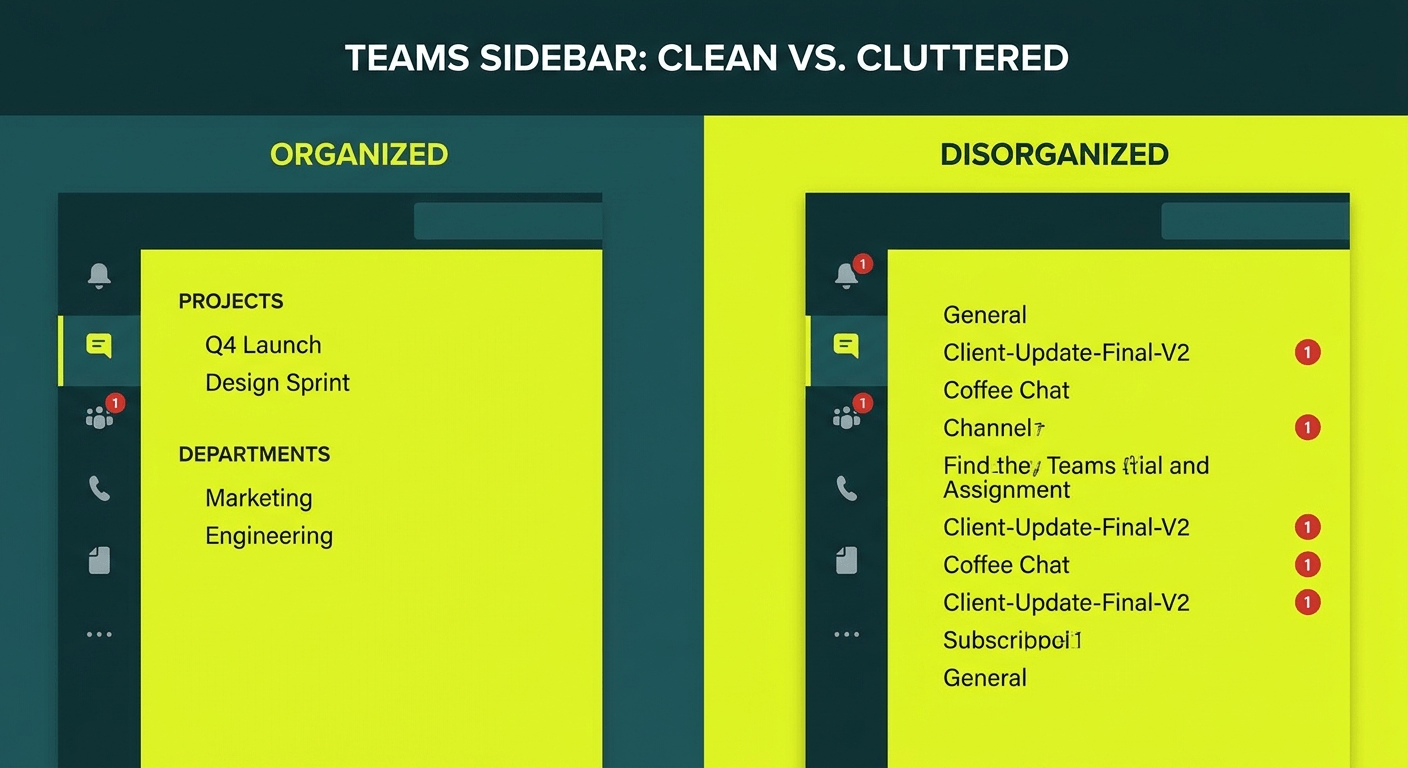
If you have ever opened Microsoft Teams and felt like you were staring into a digital junk drawer, you are not alone. The short answer to “how do I use Teams channels properly?” is this: channels are for ongoing, topic-based collaboration, not quick one-off conversations. Use chats for those. Structure your channels around your business functions, keep names clear and consistent, and run a cleanup audit every six months. That is the whole framework. The detail below will help you actually apply it.
Channels vs Chats: The Difference That Changes Everything
Microsoft Teams gives you two places to communicate: channels and chats. Most people mix them up, and that is where the chaos starts.
Chats are for quick, direct conversations between two or more people. They live in the sidebar, have no permanent structure, and are only visible to participants. Use chats for things like “are you free at 3pm?” or a quick file share that does not need to live anywhere long-term.
Channels are persistent, searchable, and structured. They sit inside a Team and are visible to everyone in that Team by default. Every conversation in a channel is threaded, which means you can find it later. Use channels for anything your team needs to refer back to, collaborate on, or track over time.
The rule: if it matters to the team and needs to be findable, it goes in a channel.
How to Structure Channels for a Typical Australian Business
Most businesses overcomplicate this. Start with the functions your team actually works in, not an org chart from 2019. A typical structure for a small-to-mid-size Australian business might look like this:
- General (keep this for announcements only)
- Marketing
- Sales
- Finance
- HR and People
- IT Support
- Projects (or separate channels per major project)
Each Team should reflect a real working group. Within that Team, channels should reflect the work streams inside it. Avoid creating a channel for every topic that comes up. If you have more than eight or ten channels in a single Team, that is a sign things are getting out of hand.
Standard, Private, and Shared Channels: When to Use Each
Standard channels are visible to everyone in the Team. Use these for the majority of your team’s work. They are indexed, searchable, and simple to manage.
Private channels are visible only to members you specifically invite, even if they are already in the Team. Use these sparingly, for things like HR discussions, performance conversations, or sensitive client matters. Be aware that private channels create a separate SharePoint site, which adds management overhead.
Shared channels let people from outside your organisation collaborate without needing a guest account. Use these for ongoing work with trusted external partners, such as a managed IT provider or a key supplier. They are cleaner than guest access for long-term relationships.
Default to standard channels. Use private and shared only when there is a genuine reason for the extra complexity.
How to Name Channels Properly
Bad channel names cause bad habits. If nobody knows where to post something, they will post it everywhere.
Use a consistent naming convention. A reliable format is: [Function] – [Topic], or just [Topic] if the Team name already provides context.
Examples inside a “Marketing” Team:
- Campaigns
- Social Media
- Content Calendar
- Reports and Analytics
Avoid vague names like “Stuff,” “Misc,” or “Random.” If you cannot explain what belongs in a channel in one sentence, rename it or delete it. Use title case and keep names short. Nobody enjoys scrolling through a 40-character channel name on a small screen.
How to Use Tabs Inside Channels
Tabs are one of the most underused features in Teams. Every channel has a tab bar at the top. By default you get Posts and Files. You can add more, and you should.
The most useful tabs to add:
- Files is already there. Use it for shared documents. It connects directly to your SharePoint document library.
- Planner turns a channel into a task board. Add it to any channel where work needs to be tracked and assigned.
- OneNote is excellent for meeting notes, standard operating procedures, or running documents that the whole team edits.
- Website lets you embed external tools or dashboards directly into a channel tab, so people do not have to switch context.
When you set up a channel, spend five minutes configuring the tabs. It saves far more time than that over the life of the project or team.
How to Pin Important Channels
If your team uses certain channels every day, pin them. Right-click any channel and select “Pin.” Pinned channels appear at the top of the sidebar, above all other Teams, so they are always visible.
Each person manages their own pins. Encourage your team to pin the two or three channels they use daily. This single habit will reduce the “I can’t find anything” complaints significantly.
Common Mistakes to Avoid
These are the patterns that reliably cause Teams to become unmanageable:
Too many channels. More is not better. Every new channel is a place someone has to check. Start with fewer than you think you need and add only when there is a clear purpose.
Using General for everything. General should be for whole-team announcements. The moment it becomes a catch-all, it loses its purpose and nobody reads it.
Mixing topics. One channel, one purpose. When conversations drift into the wrong channel, redirect them politely and close the thread.
No naming convention. If every person names their channels differently, nobody can navigate the workspace after six months. Agree on a format and stick to it.
How to Do a Channel Audit
Run a channel audit every six months. It takes less than an hour and keeps things clean.
- Open each Team and review every channel.
- Check the date of the last post. Anything inactive for three months or more is a candidate for archiving.
- Look for channels with overlapping purposes and merge the content or redirect the team.
- Archive rather than delete. Archiving preserves conversation history while removing clutter from the active workspace.
- Update the tab setup in active channels while you are there.
Getting the team to agree on what to archive is usually the hardest part. Schedule a 30-minute meeting, make the decisions together, and get it done.
How Microsoft Copilot Makes Channels Even More Useful
If your organisation has Microsoft 365 Copilot, structured channels become significantly more powerful. Copilot can summarise entire channel conversations in seconds, which means someone joining a project midway through does not have to scroll through weeks of posts. They simply ask Copilot to catch them up on the last month of activity in a channel and get a clear, structured summary instantly.
This also reinforces why important conversations belong in channels rather than private chats. Copilot cannot summarise what it cannot see. If critical decisions are buried in a direct chat between two people, they are invisible to the rest of the team and to Copilot.
Frequently Asked Questions
How many channels should a Team have?
Between three and eight is a good range for most Teams. If you are creeping past ten, it is time for an audit. More channels create more noise, not more clarity.
Can I move a conversation from one channel to another?
Not natively. You can copy individual messages or start a new thread with a summary and a link back. This is another reason to think before you post.
What happens when I archive a channel?
The channel becomes read-only. Members can still view and search the history, but no new messages can be posted. It stays accessible without cluttering the active workspace.
Should I store files in Teams or SharePoint?
Files shared via Teams are stored in SharePoint behind the scenes. For most teams, the Teams interface is the simpler way to access them. Go directly to SharePoint when you need more complex folder structures or permissions.
Our team uses Teams but nobody follows any rules. Where do we start?
Start with one Team. Agree on a naming convention, archive the dead channels, pin the important ones, and set the example. Once people see a well-structured Team working smoothly, the rest of the organisation tends to follow.
Get Your Microsoft 365 Environment Set Up Properly
A well-structured Teams environment saves time every single day and reduces the frustration that comes from information being impossible to find. If your business is still working through an unmanaged or chaotic setup, Otto IT can help you get it right.
Talk to our team about Microsoft 365 or book a call with one of our consultants to get your environment working the way it should.
managed it support articles
Related Blog Articles
Discover more insights to optimise your business with the latest IT trends and best practices. Stay ahead of the curve by learning how to leverage cutting-edge technology for success. Explore expert advice and valuable guidance to navigate the evolving world of IT solutions