

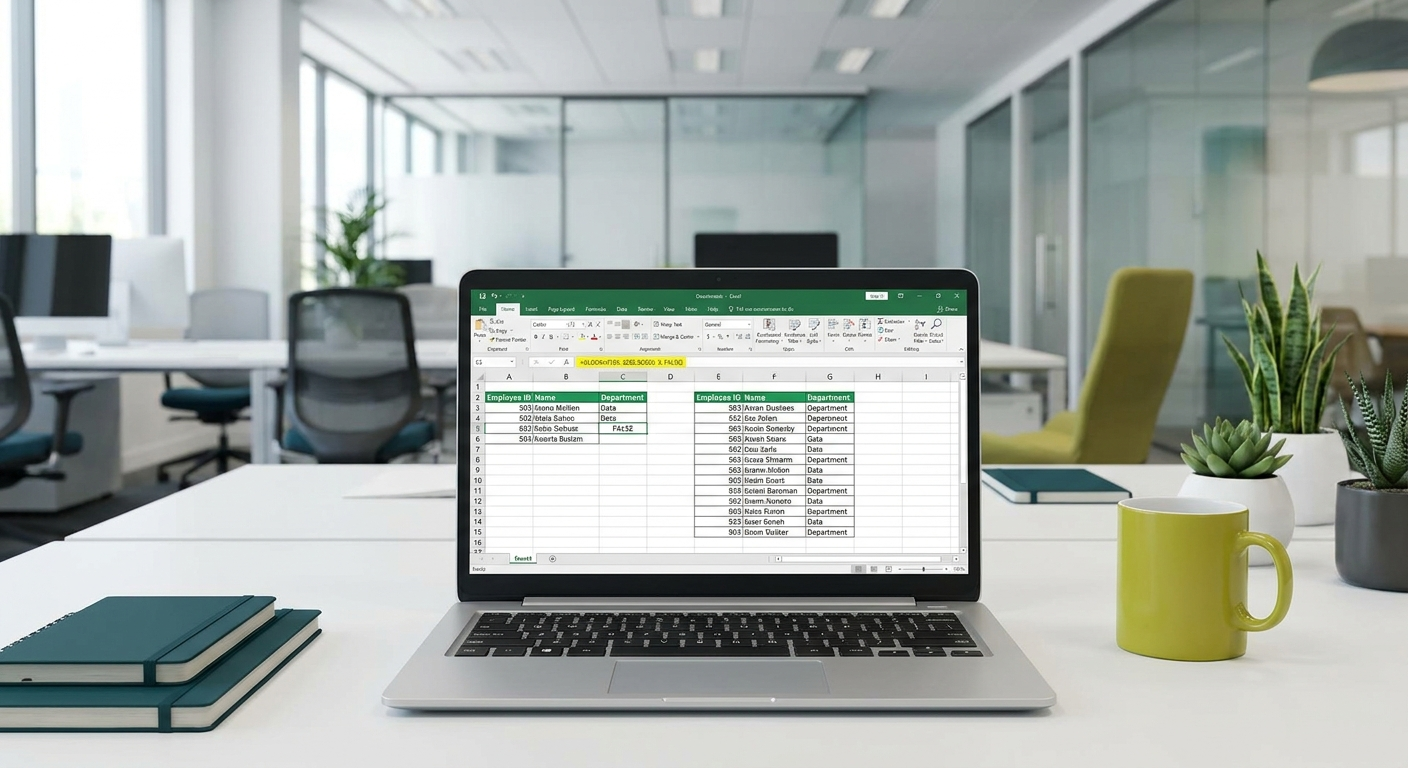
VLOOKUP is one of Excel’s most talked-about formulas. If you’ve ever needed to match data across two lists , say, pulling a customer’s name from an invoice number , VLOOKUP is built for exactly that. This guide explains how it works, how to fix the errors that trip everyone up, and when Microsoft’s newer XLOOKUP formula is the better option. We’ll also cover how Copilot in Excel can write and debug these formulas for you, so you don’t have to memorise the syntax.
What Does VLOOKUP Actually Do?
VLOOKUP stands for “Vertical Lookup.” It searches down the first column of a table, finds a matching value, and returns something from a column to the right.
Here’s a real-world example. Imagine your business has two spreadsheets. One is a list of invoice numbers with amounts owed. The other is your customer list with names and invoice numbers. You want to add the customer name to each invoice row without copying and pasting hundreds of entries manually. VLOOKUP does this in seconds.
That’s the core idea: find a value in one column, return a related value from another column in the same table.
The VLOOKUP Formula, Step by Step
The full formula looks like this:
=VLOOKUP(lookup_value, table_array, col_index_num, [range_lookup])Let’s break that down using our invoice example. Suppose your invoice numbers are in column A (starting at A2), and your customer table has invoice numbers in column D and customer names in column E.
- lookup_value , The value you’re searching for. In this case, the invoice number in cell A2.
- table_array , The table you’re searching through. Here, that’s D:E (both columns).
- col_index_num , Which column in the table contains the result you want. Column D is 1, column E is 2, so you’d enter 2.
- range_lookup , Use FALSE for an exact match. This is almost always what you want.
The complete formula would be:
=VLOOKUP(A2, D:E, 2, FALSE)Copy that formula down your invoice list and Excel fills in every customer name automatically. What used to take an hour now takes ten seconds.
Common VLOOKUP Errors (And How to Fix Them)
VLOOKUP is powerful but not forgiving. Here are the errors you’ll hit most often and what to do about them.
#N/A , Value Not Found
This means Excel searched your table and couldn’t find a match. Check for typos, extra spaces, or formatting mismatches. An invoice number stored as text won’t match one stored as a number, even if they look identical. Clean your data first or use the TRIM function to remove invisible spaces.
#REF! , Column Number Too High
This happens when your col_index_num is larger than the number of columns in your table_array. If your table only has two columns, you can’t ask for column 3. Count your columns and adjust the number.
Wrong Results (But No Error)
This usually means you forgot to use FALSE as the fourth argument. Without it, Excel defaults to an approximate match, which can return incorrect results on unsorted data. Always add FALSE unless you specifically need an approximate match.
Where VLOOKUP Falls Short
VLOOKUP has one significant limitation: it can only look to the right. The lookup column must always be the leftmost column in your table_array. If the value you need is to the left of your search column, VLOOKUP cannot retrieve it without rearranging your data.
For example, if your customer name is in column A and the invoice number is in column B, VLOOKUP can’t search column B and return column A. You’d have to restructure the spreadsheet, which isn’t always practical.
VLOOKUP also struggles when you insert new columns into your table. If you add a column between D and E in our example, your col_index_num of 2 now points to the wrong column and returns incorrect data silently.
What Is XLOOKUP and Why Is It Better?
XLOOKUP is Microsoft’s modern replacement for VLOOKUP. It was introduced with Microsoft 365 and is available to most Australian businesses with a current subscription. It solves almost every limitation VLOOKUP has.
The formula structure is simpler:
=XLOOKUP(lookup_value, lookup_array, return_array)Using our invoice example:
=XLOOKUP(A2, D:D, E:E)You point it directly at the column to search (D:D) and the column to return (E:E). There’s no column numbering involved, so inserting new columns won’t break anything. XLOOKUP also defaults to an exact match without needing a fourth argument.
Most importantly, XLOOKUP can search in any direction. If your customer names are in column A and you want to look them up by invoice number in column B, that works without rearranging anything.
VLOOKUP vs XLOOKUP: When to Use Each
| Situation | Use VLOOKUP | Use XLOOKUP |
|---|---|---|
| Sharing with people on older Excel versions | Yes | No (requires Microsoft 365) |
| Lookup column is always leftmost | Fine | Also fine |
| Need to look left (return column left of search column) | No | Yes |
| Table structure changes frequently | Risky | Safer |
| Need a custom error message when no match found | Requires extra formula | Built in |
| General everyday use on Microsoft 365 | Works | Recommended |
The short version: if everyone on your team is on Microsoft 365, use XLOOKUP. It’s cleaner, more flexible, and less likely to break when your spreadsheet changes.
How Copilot in Excel Can Write These Formulas for You
If you’re running Microsoft 365 with Copilot enabled, you don’t need to memorise either formula. Copilot can write them, explain them, and fix them in plain English.
Here are specific prompts you can use directly in the Copilot panel inside Excel:
To generate a VLOOKUP formula:
“I have invoice numbers in column A and a customer table in columns D and E with invoice numbers in D and customer names in E. Write a VLOOKUP formula in column B to return the customer name for each invoice.”
To generate an XLOOKUP formula:
“Use XLOOKUP to search column D for the value in A2 and return the matching value from column E.”
To explain a formula you didn’t write:
“Explain what this formula does in plain English: =VLOOKUP(A2,D:E,2,FALSE)”
To debug an error:
“My VLOOKUP formula is returning #N/A but I can see the value exists in the table. What could be causing this?”
Copilot won’t just give you the formula , it will explain each part so you understand what it’s doing. For teams that work in Excel regularly, Copilot turns formula writing from a guessing game into a conversation.
If your business hasn’t yet explored what Copilot in Microsoft 365 can do for productivity, it’s worth a conversation. Get in touch with the Otto IT team to find out how AI tools like Copilot can be rolled out effectively across your organisation.
Frequently Asked Questions
Does VLOOKUP work in all versions of Excel?
Yes. VLOOKUP has been available in Excel for decades and works in Excel 2007, 2010, 2013, 2016, 2019, and Microsoft 365. XLOOKUP requires Microsoft 365 or Excel 2021 and later.
Can VLOOKUP search across multiple sheets?
Yes. You can reference a table on another sheet by including the sheet name in your table_array. For example: =VLOOKUP(A2, Sheet2!D:E, 2, FALSE). The formula works the same way.
Why does my VLOOKUP return the wrong value?
The most common cause is a missing FALSE at the end of the formula. Without it, Excel uses approximate matching, which can return an incorrect result from a nearby row. Add FALSE as the fourth argument to force an exact match.
Is XLOOKUP available in Google Sheets?
No. XLOOKUP is a Microsoft Excel feature. Google Sheets has its own equivalent called XLOOKUP (added in 2022) but the syntax and behaviour differ slightly. This guide covers the Microsoft Excel version.
Can Copilot in Excel fix a broken formula?
Yes. Paste the formula into the Copilot chat and describe what’s going wrong. Copilot will identify likely causes and suggest a corrected version. It works well for common errors like #N/A, #REF!, and unexpected results.
What’s the best way to learn Excel formulas faster?
Practice on real data from your own work. Start with a simple VLOOKUP or XLOOKUP task , something you’d normally do by hand , and build the formula around it. Using Copilot to explain each step as you go is one of the fastest ways to get comfortable with the syntax.
Ready to Get More From Microsoft 365?
VLOOKUP and XLOOKUP are just two of the tools that can save your team real time every week. If your business is running Microsoft 365 and wants to unlock more of what it offers , from Copilot to automation to better data management , the Otto IT team can help.
Book a free consultation to talk through how we support professional services firms across Australia with IT, cloud, and productivity solutions.
managed it support articles
Related Blog Articles
Discover more insights to optimise your business with the latest IT trends and best practices. Stay ahead of the curve by learning how to leverage cutting-edge technology for success. Explore expert advice and valuable guidance to navigate the evolving world of IT solutions