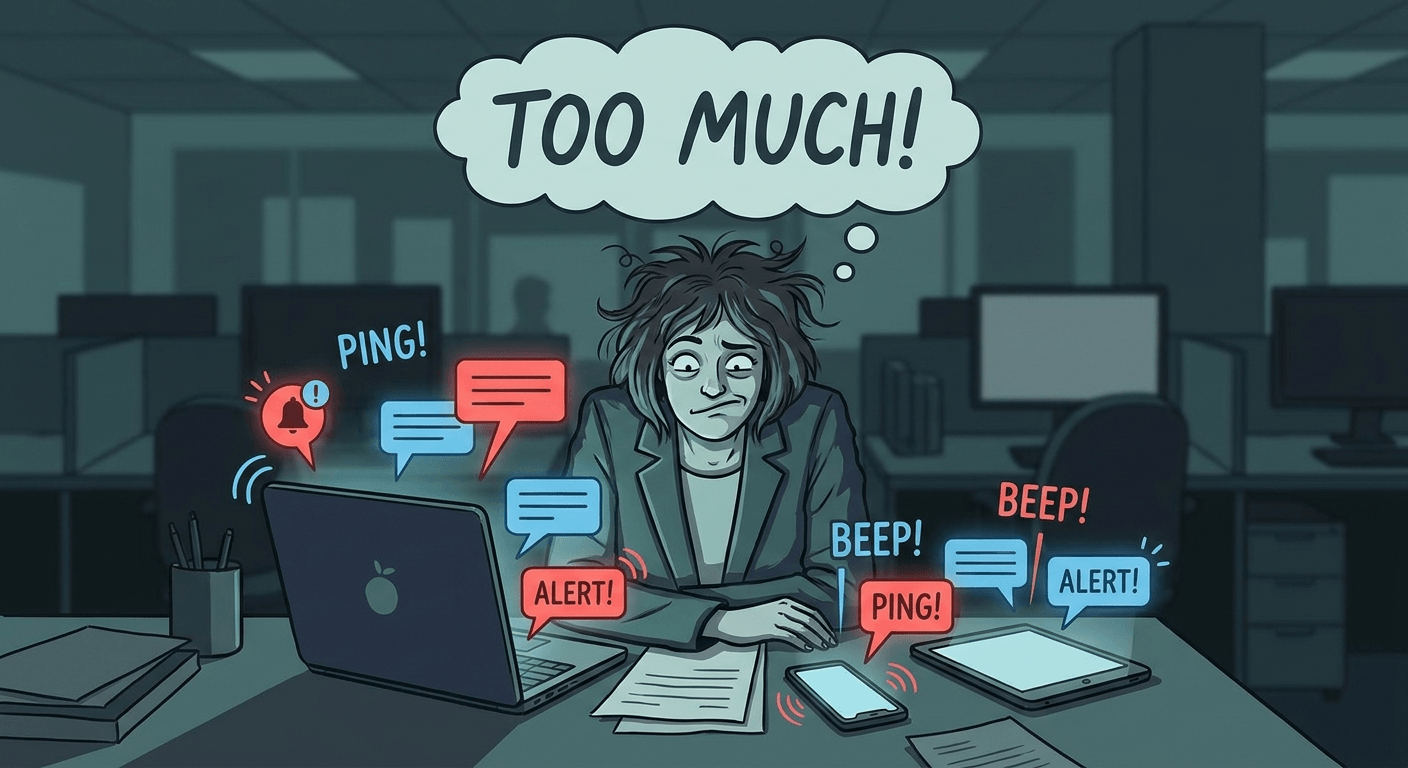
If you have Microsoft Teams open right now, there is probably a red badge somewhere on your screen. Maybe several. You have messages you have not read, channels you have mentally muted, and a general sense that something important is probably buried in there somewhere.
You are not wrong to feel overwhelmed. Teams notifications were designed to keep you connected, but without the right setup, they keep you interrupted instead. The good news is you do not have to choose between drowning in alerts and missing everything important. Here is how to get it right.
Why Teams Notifications Get Overwhelming
Teams combines chat, meetings, file sharing, and project activity into one place. That is genuinely useful. But it also means every channel, every group chat, every @mention, and every meeting reminder competes for your attention at the same time.
Most people respond in one of two ways. They either leave everything on and feel constantly pinged, or they switch most notifications off and then miss something their manager asked about three days ago. Neither approach works. The goal is a middle path: smart, selective notification settings that surface what matters and filter out the rest.
How to Customise Notification Settings in Teams
Start with your global notification settings. These control what Teams alerts you to by default across all channels and chats.
On desktop:
- Click your profile picture in the top right corner of Teams.
- Select Settings, then choose Notifications and activity.
- From here you can control which events trigger a banner, which ones just update the activity feed, and which ones send no alert at all.
For most people, the best starting point is to set @mentions and direct messages to banner notifications, and set everything else to “Only show in feed” or off entirely. This keeps your banner alerts for things that genuinely need your attention.
On mobile:
- Tap your profile picture at the top left.
- Go to Notifications.
- Adjust settings for mentions, messages, meetings, and other activity.
The mobile settings also let you block notifications during specific hours, which we will cover shortly.
How to Use Do Not Disturb and Focus Assist Together
Do Not Disturb in Teams silences all incoming notifications for a set period. You can turn it on manually or schedule it around your focus time.
To set it: click your profile picture, select your current status, and choose Do not disturb. You can also set a duration so it turns off automatically.
On Windows, pairing this with Focus Assist (found in Settings under System) creates a genuine distraction-free block. Focus Assist can suppress all Windows notifications, not just Teams, during a set schedule or when screen sharing. If you are using Windows 11, Focus Sessions in the Clock app can start a Focus Assist block automatically when you begin a timed session.
The key is to use Do Not Disturb intentionally. Set it for your deep work hours and come back to notifications when the block ends. People who need you urgently can still call or send you a direct message that will come through when you check in.
How to Mute Specific Chats and Channels Without Leaving Them
Leaving a channel entirely is often too drastic. You might still need to check it occasionally. Muting is the better option.
To mute a channel: Right-click the channel name in the left sidebar and select Channel notifications, then set it to Off. You will still see the channel and can visit it when you choose, but it will not ping you.
To mute a chat: Right-click the conversation in your chat list and select Mute. The chat stays in your list, but the red badge and banner notifications stop.
This is especially useful for high-volume general channels where a lot of conversation happens but very little of it requires your direct input. Mute the noise, keep the access.
How to Use @Mentions to Notify the Right People
One of the most effective ways to reduce unnecessary notifications across your team is to use @mentions properly. When you @mention someone, they get a specific notification. When you post to a channel without mentioning anyone, most people with default settings will only see an activity feed update, not a banner.
Use @name to notify a specific person. Use @channel to notify everyone who follows that channel. Use @team sparingly, only when the entire team genuinely needs to act or be aware.
If your team is in the habit of using @channel for everything, you will all end up with notification fatigue. Agree on a team norm: @channel for urgent or action-required items only, general posts for everything else.
How to Set Quiet Hours on Mobile
Your phone should not be pinging you with Teams notifications at 10pm. Quiet hours let you define exactly when Teams goes silent on your mobile device.
In the Teams mobile app:
- Tap your profile picture.
- Go to Notifications.
- Tap Quiet hours or Quiet days.
- Set the time window when notifications are blocked.
This applies only to your mobile device, not your desktop. So if you keep your laptop open after hours, make sure your desktop Do Not Disturb is also configured. Setting quiet hours on mobile and scheduling Do Not Disturb on desktop during the same window gives you a clean separation between work time and personal time.
How to Prioritise Channels with Activity Pins
Not all channels deserve equal attention. Teams lets you pin the channels that matter most so they always appear at the top of your list, regardless of recent activity.
To pin a channel: right-click the channel name and select Pin. Pinned channels appear in a dedicated section at the top of your Teams sidebar. You can drag them to reorder.
A good approach is to pin three to five channels that you check daily, and leave the rest in the general list. This way your eye always goes to the right place first when you open Teams, instead of hunting through a long list to find what matters.
How Microsoft Copilot Helps You Manage the Noise
If you are using Microsoft 365 Copilot, there is an extra layer of reassurance available when you mute channels. Copilot can summarise missed messages in channels you have muted, so you can tune out without missing key decisions.
Instead of leaving a channel unmuted because you are worried about missing something important, you can mute it and then ask Copilot to catch you up. Open the channel, click the Copilot icon, and ask something like “What did I miss in this channel this week?” or “Were any decisions made here today?” Copilot will summarise the key points, so you get the signal without the noise.
This is one of the most practical uses of Copilot in everyday work: not generating content, but filtering information so you can focus on what actually needs your attention.
Frequently Asked Questions
Will muting a channel affect other people’s notifications?
No. Muting is personal. It only affects what you see. Other team members continue to receive notifications based on their own settings.
Can I still see messages in a muted channel?
Yes. Muting stops the banner notifications and removes the red badge. The channel still appears in your sidebar and you can visit it whenever you like.
What is the difference between Do Not Disturb and muting?
Do Not Disturb pauses all notifications temporarily, across everything in Teams. Muting is selective and permanent until you change it. Use DND for focused work blocks and muting for channels you want to check on your own schedule.
Do quiet hours affect my status in Teams?
No. Your status in Teams is separate from quiet hours. You can appear as Available while quiet hours are active on your phone. To show colleagues you are in focus mode, manually set your status to Do Not Disturb or Focusing.
What if someone urgent needs to reach me while I am in Do Not Disturb?
In Teams settings, you can allow certain contacts to break through Do Not Disturb. Go to Settings, then Notifications, and find the priority access section to add specific people whose messages will still come through.
Get the Right Setup for Your Team
Notification settings that work for one person may not work for another. If your team is struggling with Teams overload, it is worth spending 30 minutes agreeing on shared norms for @mentions, channel use, and response expectations. Small changes in how a team uses Teams can make a big difference to everyone’s focus.
If you want help reviewing your Microsoft 365 setup, optimising Teams for your workflows, or rolling out Copilot across your business, we can help. Get in touch with the Otto IT team or book a time to talk through your options. We work with professional services firms across Australia to get more out of their Microsoft 365 investment.
managed it support articles
Related Blog Articles
Discover more insights to optimise your business with the latest IT trends and best practices. Stay ahead of the curve by learning how to leverage cutting-edge technology for success. Explore expert advice and valuable guidance to navigate the evolving world of IT solutions