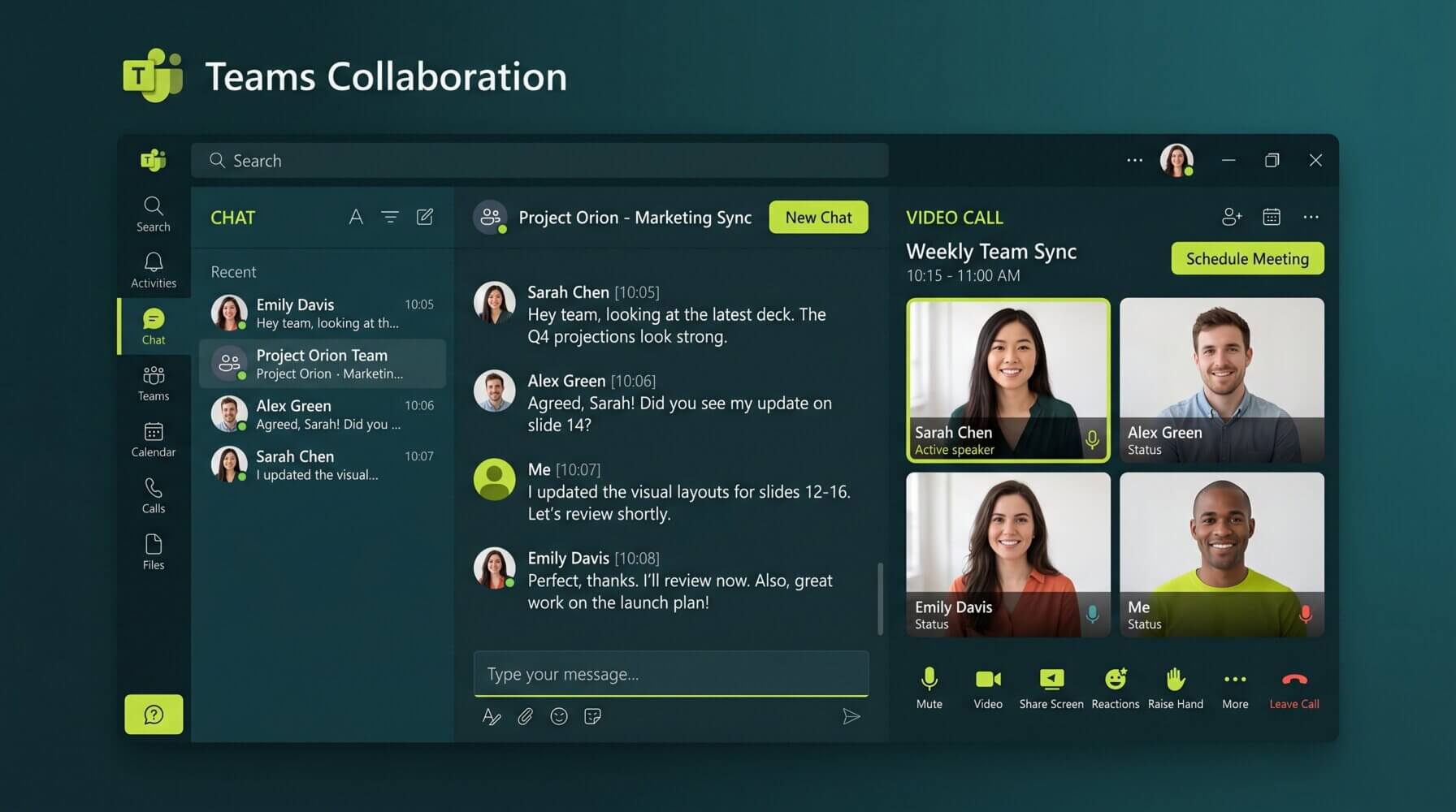
Microsoft Teams has evolved well beyond a video calling tool. In 2026, it is a comprehensive platform for communication, collaboration, project management, and AI-assisted work. But many business users are still only scratching the surface of what Teams can do.
Here are ten features that deliver real value and that you should be using if you are not already.
1. Copilot in Teams
If your Microsoft 365 plan includes Copilot, Teams is one of the best places to use it. During or after a meeting, you can ask Copilot to summarise what was discussed, list action items, identify key decisions, or find information from past conversations.
Instead of writing up meeting notes yourself, ask Copilot to draft them. Instead of searching through days of chat messages, ask Copilot what was decided about a specific topic. This alone can save hours per week for busy teams.
2. Channels and Channel Organisation
If your team uses one general Teams channel for everything, you are missing out on one of Teams’ most useful structural features. Channels let you organise conversations, files, and tabs by project, topic, or department.
Use private channels for sensitive conversations that should only be visible to specific members. Use shared channels to collaborate with people outside your organisation without giving them access to everything. Keep your channel names clear and consistent so people can find what they need quickly.
3. Loop Components in Chat
Microsoft Loop components are live, collaborative elements you can embed directly into a Teams chat or channel message. They include tables, task lists, bullet lists, and more. Everyone in the conversation can edit the Loop component inline, and changes sync in real time.
This is particularly useful for capturing action items during a discussion, collaboratively drafting a short document, or tracking a quick decision without creating a full document in SharePoint.
To insert a Loop component, click the Loop icon in the message compose box. Choose the component type and start collaborating.
4. Meeting Templates
Teams allows you to create meeting templates that pre-configure settings for specific types of meetings. For example, you might create a template for client calls that automatically enables lobby waiting, turns off recording by default, and sets a specific background.
Templates are configured in the Teams admin centre and can be assigned to specific teams or users. For organisations that run consistent meeting formats regularly, this feature removes setup friction and ensures a consistent experience.
5. Together Mode and Custom Backgrounds
Together Mode places all meeting participants in a shared virtual space, which some teams find reduces video call fatigue compared to the standard grid view. Custom backgrounds let users replace their real background with an image or video, which is useful for maintaining a professional appearance in any environment.
To access these during a call, click the three-dot menu at the top of your meeting window and select Video effects.
6. Breakout Rooms
For team workshops, training sessions, or group working sessions, breakout rooms let you split a large Teams meeting into smaller groups. The organiser can create rooms before or during the meeting, assign participants automatically or manually, and broadcast messages to all rooms at once.
When time is up, all participants return to the main meeting with a single click from the organiser. This feature is excellent for structured collaboration workshops and team-building sessions.
7. Tabs and App Integrations
Tabs let you pin apps, websites, documents, and dashboards directly inside a Teams channel. Instead of switching between Teams and your browser or other tools, you can access everything in one place.
Commonly used tab integrations include Planner (for task management), OneNote (for shared notes), SharePoint pages, Power BI dashboards, and external tools like Asana, Jira, or Trello if you use them.
To add a tab, click the + icon at the top of any channel and search for the app you want to add.
8. Live Transcription
Teams can automatically transcribe meetings in real time. Transcripts are attributed to individual speakers, making them easy to follow. After the meeting, you can access the full transcript from the meeting recording or from the meeting details in your calendar.
Live transcription is particularly useful for participants who are not native English speakers, anyone who joins a meeting late and needs to catch up, and for creating searchable records of important discussions.
To enable transcription, click the three-dot menu during a meeting and select Start transcription. Note that your organisation’s recording and transcription policies may affect availability.
9. Quiet Hours and Notifications Management
One underappreciated aspect of Teams is the level of control you have over notifications. Managing these well is important for maintaining focus during deep work.
In Teams settings, you can set quiet hours to silence notifications outside of work hours, configure which types of messages trigger notifications, and mute specific channels or conversations without leaving them. For remote teams working across time zones, quiet hours are particularly important for maintaining healthy boundaries.
10. Search and Message Pinning
Teams’ search feature is more powerful than most people realise. You can search across messages, files, and people with keyword filters, date filters, and sender filters. Learning to use the search bar effectively can save significant time when you are looking for a decision made in a conversation weeks ago.
Message pinning allows channel members to pin important messages at the top of a channel so they are easy to find. Use this for important announcements, key reference documents, or recurring information that team members frequently need.
Making the Most of Teams
Microsoft Teams is updated frequently, with new features added on a regular basis. Staying up to date on what is new helps your team stay productive. Microsoft publishes release notes and feature announcements through the Microsoft 365 Admin Centre and the Microsoft Tech Community blog.
If your organisation wants to improve how it uses Microsoft Teams or roll out new features to staff, the Otto IT Microsoft 365 services page has details on how we support Teams deployments and adoption. For specific help or advice, contact the Otto IT team.
Summary
Microsoft Teams has features that go far beyond basic chat and video calls. From Copilot-powered meeting summaries to Loop components, breakout rooms, and live transcription, there are tools in Teams that can meaningfully improve how your team communicates and collaborates every day.
If your business needs help getting the most out of Microsoft 365 or keeping your IT running smoothly, talk to the Otto IT team.
Frequently Asked Questions
What Microsoft 365 licence includes all Teams features including Copilot?
Microsoft 365 Copilot is an add-on licence that costs approximately $36 per user per month (AUD pricing may vary). It requires a base Microsoft 365 Business Standard, Business Premium, or Enterprise plan. Most standard Teams features, such as channels, meeting recording, and breakout rooms, are included in Business Basic and above. Check your current licence against the feature list before purchasing add-ons.
How is Microsoft Teams different from Slack or Zoom in 2026?
Teams has converged into a unified platform covering chat, video, file collaboration, phone, and AI assistance in a way Slack and Zoom have not fully matched. Slack remains stronger for developer and cross-company communities. Zoom remains the preference for organisations focused purely on video quality. Teams is the stronger choice for businesses already in the Microsoft 365 ecosystem because of its deep integration with SharePoint, OneDrive, Outlook, and Copilot.
Does Microsoft Teams work with a slow or unreliable internet connection?
Teams has improved significantly in bandwidth efficiency. A standard video call requires around 1.5 Mbps. Teams will automatically reduce video quality under poor conditions to maintain the connection. Audio-only calls work well on connections as slow as 100 Kbps. For sites with genuinely unreliable connectivity, Teams Phone and mobile app fallback provide additional resilience.
Can I use Microsoft Teams to collaborate with clients or partners who do not have Microsoft accounts?
Yes. External guests can join Teams meetings via a browser link without a Microsoft account. For ongoing collaboration, Teams supports guest access for external users with Microsoft accounts, and federated access for users in other Microsoft 365 tenants. For clients without any Microsoft account, meeting join links work without requiring sign-in.
Is Microsoft Teams compliant with Australian data sovereignty and security requirements?
Microsoft Teams is covered by Microsoft’s Australian data residency commitments for tenants provisioned in Australian regions. For regulated industries, Teams meets ISO 27001, SOC 2, and various industry-specific standards. IRAP-assessed configurations are available for government and high-compliance environments. Your IT provider can confirm which compliance settings apply to your specific tenant configuration.
managed it support articles
Related Blog Articles
Discover more insights to optimise your business with the latest IT trends and best practices. Stay ahead of the curve by learning how to leverage cutting-edge technology for success. Explore expert advice and valuable guidance to navigate the evolving world of IT solutions