Microsoft Teams is primarily thought of as a communication tool, but it is also a capable platform for managing projects. With its integration into Microsoft 365, Teams connects conversations, tasks, files, and meetings in one place, making it a practical choice for businesses that want to manage work without adding another separate tool to their stack.
This guide explains how to set up and use Microsoft Teams effectively for project management.
Why Use Teams for Project Management?
The main advantage of managing projects inside Teams is that your communication and your work live in the same place. You do not need to switch between a project management tool and a chat tool and an email client to keep a project moving. Conversations about tasks happen next to the tasks themselves, and documents are stored in SharePoint automatically as part of the Teams structure.
Teams is not a replacement for dedicated project management tools like Jira, Asana, or Monday.com for complex projects. But for most day-to-day project work in small and medium businesses, it is more than capable.
Setting Up a Project Team
Start by creating a dedicated Team for your project in Microsoft Teams. Click Teams in the left sidebar, then click Join or create a team > Create team. Name it clearly after the project or client.
Add the right members to the team. Only include people who need to be involved – keeping teams focused and appropriately sized makes communication cleaner.
Create channels within the team to organise work by workstream, phase, or topic. For example, a software project might have channels for Design, Development, Testing, and Client Communication. A marketing project might have channels for Content, Campaigns, and Reporting.
Using Microsoft Planner for Task Management
Microsoft Planner is a visual task management tool that integrates directly into Teams. You can add a Planner tab to any channel by clicking the + icon at the top of the channel and selecting Planner.
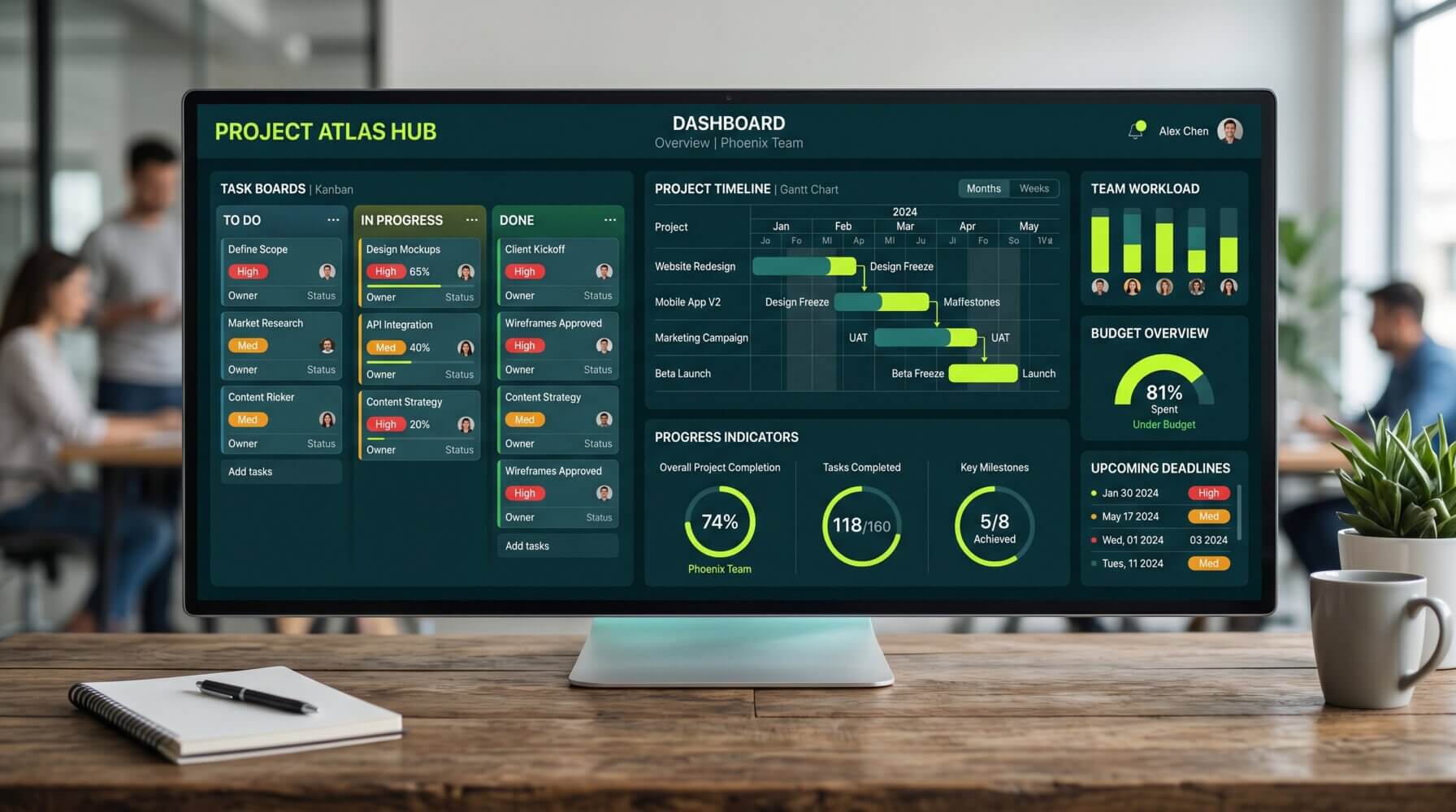
In Planner, create a board with buckets representing different phases or categories of work. Add tasks to each bucket, assign them to team members, set due dates, and attach relevant files. Team members can update task status as work progresses, and the board gives everyone a clear view of what is done, in progress, and not yet started.
Key Planner features for project management include:
- Task assignments: Each task can be assigned to one or more team members
- Due dates and reminders: Tasks with due dates appear in the assigned person’s Planner view and calendar
- Checklists: Break tasks into sub-steps with a checklist inside each task
- Labels: Apply colour-coded labels to categorise or prioritise tasks
- Charts view: See an automatic chart of task completion status by bucket, member, and priority
Using the Tasks App for a Unified View
The Tasks app in Teams (found in the left sidebar) aggregates tasks from all your Planner boards and To Do lists into one view. This is useful for team members who are working across multiple projects and want to see everything assigned to them in one place, rather than navigating to each project’s Planner board individually.
Managing Files and Documents
Every Teams channel has a Files tab where documents are stored in SharePoint. You can create folders, upload files, and work on documents collaboratively within the Teams interface. All files are automatically versioned, so you can see the history of changes and restore previous versions if needed.
Pin important project documents to the top of a channel using tabs so they are always easy to find. A project brief, a status report template, or a shared spreadsheet can be pinned as a tab and accessed directly from the channel.
Running Effective Project Meetings in Teams
For regular project meetings, schedule recurring Teams meetings from the Calendar. Before each meeting, pin the agenda in the Teams chat. During the meeting, use the meeting notes feature to capture decisions and actions in real time.
If you have Microsoft Copilot, use it to generate meeting summaries and action items automatically after each project update call. This removes the manual burden of writing up meeting notes and ensures nothing gets missed.
Using Loops for Collaborative Planning
Microsoft Loop components can be added directly to Teams channel messages and chats. Use a Loop table or task list to collaboratively build a project plan, assign responsibilities, or track decisions without creating a full document.
Loop components update in real time for all viewers, making them useful for quick planning sessions where you want everyone to contribute to a shared document without the overhead of opening a full SharePoint file.
Integrating External Project Tools
If your organisation uses Jira, Asana, Trello, Monday.com, or other project management tools, most of these have Teams integrations available. You can add them as tabs in a channel, receive notifications from them in Teams, and in some cases manage tasks directly within Teams without switching apps.
Search the Apps section of Teams to find integrations for your existing tools.
Tips for Keeping Projects on Track in Teams
- Use @mentions deliberately: Mention team members when you need their attention on a specific message. Avoid @channel mentions for anything that is not genuinely relevant to the whole group.
- Keep Planner up to date: A Planner board is only useful if team members actually update their tasks. Make reviewing and updating tasks part of your regular meeting agenda.
- Archive completed projects: When a project is complete, archive the Team rather than deleting it. Archived teams are searchable and their content is preserved, but they no longer appear in the active list.
- Name files clearly: Establish a consistent file naming convention for your project so documents are easy to find as the project grows.
For more information on how Microsoft 365 tools can support your business operations, visit the Otto IT Microsoft 365 services page. If you need help setting up Teams for your organisation or training your team on how to use it effectively, contact the Otto IT team.
Summary
Microsoft Teams is a capable project management platform when used with Planner, shared files, and structured channels. Setting up a clear team and channel structure, using Planner for task tracking, and running consistent meetings with documented outcomes are the keys to making project management in Teams work well for your business.
If your business needs help getting the most out of Microsoft 365 or keeping your IT running smoothly, talk to the Otto IT team.
Frequently Asked Questions
How long does it take to implement a Microsoft Teams project for a small business?
Implementation timelines vary based on your environment size and complexity. Most small to medium-sized Australian businesses can expect an initial rollout to take anywhere from a few days to several weeks, depending on the scope. Partnering with an experienced managed IT provider helps streamline the process and reduces disruption to day-to-day operations.
What are the ongoing costs associated with a Microsoft Teams project?
Costs depend on your organisation’s size, existing infrastructure, and the level of support you require. Many modern solutions use subscription-based pricing, which makes ongoing costs predictable and easier to budget. We recommend requesting a scoped proposal tailored to your specific environment to get an accurate figure.
Do I need an in-house IT team to manage Microsoft Teams project?
Not necessarily. Many organisations outsource this to a managed IT services provider, which gives you access to specialist expertise without the overhead of a full-time hire. A good provider will handle setup, monitoring, updates, and support on your behalf, freeing your team to focus on core business activities.
Is Microsoft relevant for non-technical industries like law, accounting, or healthcare?
Absolutely. Non-technical industries often have the most to gain, as they handle sensitive client data and face strict compliance and regulatory requirements. Solutions in this space are designed to be accessible and user-friendly, so your staff do not need a technical background to benefit from them.
How do I know if my current approach is adequate?
The best starting point is a technology assessment or independent audit conducted by a qualified IT professional. This identifies gaps in your current setup and produces a prioritised list of improvements. Otto IT offers complimentary assessments for businesses looking to understand their technology posture and where to focus next.
managed it support articles
Related Blog Articles
Discover more insights to optimise your business with the latest IT trends and best practices. Stay ahead of the curve by learning how to leverage cutting-edge technology for success. Explore expert advice and valuable guidance to navigate the evolving world of IT solutions