

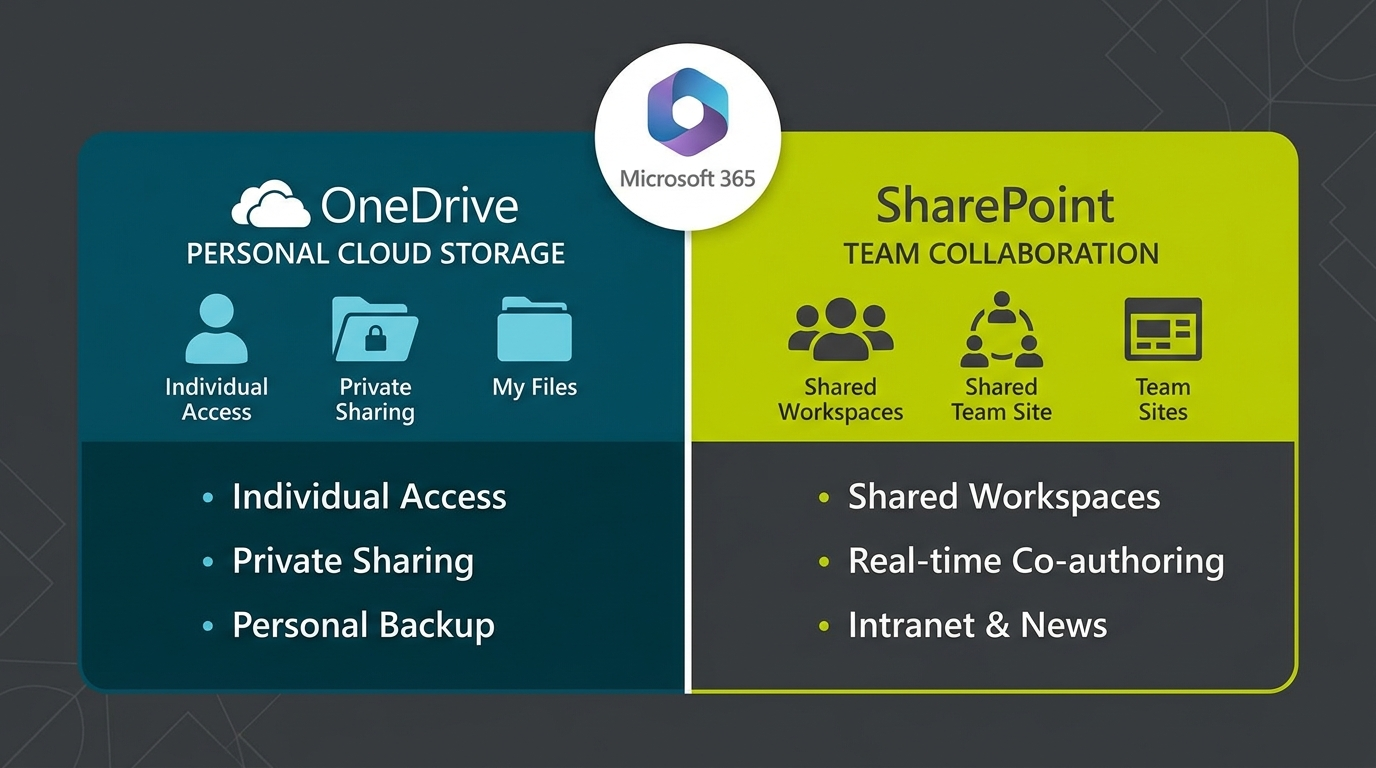
OneDrive is your personal cloud storage for individual work files, while SharePoint is your team’s shared document library for collaboration. Both are part of Microsoft 365, both sync to your desktop, and both can feel frustratingly similar , until you understand the logic behind each one. This guide explains the OneDrive vs SharePoint difference clearly, so your business stops storing files in the wrong place.
What Is OneDrive For?
OneDrive is designed for you as an individual. It is your personal workspace in the cloud, where you keep files that belong to you , not to a team or a project.
Use OneDrive when you are working on something that is not ready to share yet. Think of it like your desk drawer: it holds your drafts, your personal notes, your work-in-progress documents, and files you are not ready to hand off.
Common uses for OneDrive include:
- Early-stage drafts you are still writing or editing
- Personal reference documents you use regularly
- Files you have received that only you need to access
- Backups of files from your local desktop
- Documents you plan to move to SharePoint once they are finished
OneDrive is tied to your Microsoft 365 account. If you leave the organisation, your OneDrive files leave with you, or are transferred to your manager. This is an important distinction that many businesses overlook.
What Is SharePoint For?
SharePoint is designed for teams. It is a structured document library where your whole organisation, or specific groups within it, can store, access, and collaborate on shared files.
Think of SharePoint as the office filing cabinet that everyone can see and use. It holds the files that belong to the business, not to any one person.
Common uses for SharePoint include:
- Team project folders and shared document libraries
- Company policies, templates, and standard operating procedures
- Files multiple people need to edit or access regularly
- Department-level resources such as HR documents or finance reports
- Content that should stay with the business even when staff leave
SharePoint also connects to Microsoft Teams. When you create a Team in Microsoft Teams, it automatically creates a SharePoint site in the background to store your files. This means the “Files” tab in every Teams channel is actually SharePoint.
OneDrive vs SharePoint: Key Differences
| Feature | OneDrive | SharePoint |
|---|---|---|
| Who owns the files? | The individual user | The organisation or team |
| Default visibility | Private (only you) | Shared with the team or site members |
| Best for | Personal and draft files | Shared, finalised, and team documents |
| Storage limit | 1TB per user (standard) | 1TB per site plus 10GB per licensed user |
| Syncs to desktop? | Yes | Yes |
| Connected to Teams? | Indirectly | Directly (Teams Files tab) |
| Survives staff departure? | Needs manual handover | Yes, stays with the team |
| Version history? | Yes | Yes (more advanced controls) |
When to Use OneDrive
Use OneDrive when the file is yours and yours alone, for now. Some good rules to follow include:
- You are drafting a proposal before it goes to the client
- You are reviewing a document privately before sharing it
- The file is personal admin, such as your timesheet notes or meeting prep
- You need a personal reference library that you use day to day
- You are working on something that will eventually move to a shared team folder
A simple rule to remember: if you would not care if a colleague saw it, it probably belongs in SharePoint. If it is not ready for others yet, keep it in OneDrive.
When to Use SharePoint
Use SharePoint when the file belongs to the team or the business. This includes:
- Finalised documents that others need to reference or update
- Anything stored in a Microsoft Teams channel (it is already in SharePoint)
- Company-wide resources such as policy documents and brand templates
- Project folders where multiple people are contributing
- Files that must remain accessible even if a staff member leaves
If you are creating a new shared resource from scratch, start in SharePoint. Do not create it in OneDrive and then share it; this creates confusion about ownership and can cause access issues later.
The Overlap and How to Avoid Confusion
Here is where most businesses get tripped up: you can share files from OneDrive, and you can sync SharePoint files to your desktop just like OneDrive. This means the two platforms can look almost identical on your computer.
The confusion usually looks like this:
- A staff member saves a shared project file to their OneDrive instead of SharePoint
- They leave the business, and the file disappears with their account
- Or they share the file individually rather than giving the whole team access
A practical way to avoid this is to agree on a rule across your team: personal files go to OneDrive, shared files go to SharePoint. Write it down, put it somewhere visible, and enforce it when onboarding new staff.
You can also move files between the two. If you have been keeping a document in OneDrive and it is ready to share properly, right-click it in the browser and move it to the relevant SharePoint library.
How Microsoft Copilot Works Across Both
Microsoft 365 Copilot can search, summarise, and work with files stored in both OneDrive and SharePoint. However, there are some important points to understand.
Copilot respects your existing permissions. It will only surface files that you already have access to. This means if a file is buried in someone’s personal OneDrive and was never shared, Copilot will not be able to find it.
This is another reason to keep shared files in SharePoint. When files are stored correctly in SharePoint with proper permissions, Copilot can:
- Find relevant documents based on what you are working on
- Summarise long reports or policy documents in seconds
- Draft new content by referencing existing files your team has approved
- Answer questions about project documents without you needing to open each file
If your team’s files are scattered across personal OneDrive accounts, Copilot’s ability to help you is significantly reduced. Clean file structure in SharePoint unlocks much more of what Copilot can do.
Common Mistakes Businesses Make
After helping many professional services businesses with their Microsoft 365 setup, we see the same mistakes come up repeatedly.
Storing everything in OneDrive: This is the most common mistake. Staff use OneDrive because it is familiar, but shared files end up trapped in personal accounts. When someone leaves, important documents disappear or require urgent recovery.
Using email to share OneDrive files: Instead of setting up a proper SharePoint library, teams share individual file links via email. This creates version control problems and makes it impossible to find the latest file later.
Not syncing SharePoint to the desktop: Many users do not realise SharePoint can sync to their desktop through File Explorer or Finder, just like OneDrive. Once they discover this, SharePoint becomes much easier to use day to day.
Creating duplicate files in both places: A document starts in OneDrive, gets shared, then copied to SharePoint. Now there are two versions and nobody knows which is current.
Practical Setup Tips
If you want to get your file structure right without a major overhaul, start here.
Audit your OneDrive now: Look for any files that other people need access to. Move those to the appropriate SharePoint library today. This is a quick win that immediately reduces confusion.
Set up SharePoint libraries by team or function: Create a library for each team or major function , such as Marketing, Finance, or Operations. Give each team ownership of their library and train them to use it.
Sync SharePoint to your desktop: In SharePoint, click the Sync button in the top menu to add the library to your File Explorer or Finder. This makes SharePoint feel just like a local folder.
Add SharePoint shortcuts to OneDrive: You can add shortcuts to SharePoint libraries directly in your OneDrive view. This way, everything appears in one place on your desktop, but files are stored where they belong.
Create a file naming convention: Agree on a naming standard across your team. Consistent naming makes both OneDrive and SharePoint easier to search and navigate, and helps Copilot find the right files faster.
Not Sure Where to Start? Otto IT Can Help
Getting OneDrive and SharePoint properly configured is one of the best investments a business can make in its productivity and data security. When files are in the right place, your team works faster, collaboration improves, and nothing gets lost when staff move on.
Otto IT helps professional services businesses in Australia set up, organise, and optimise their Microsoft 365 environment , including OneDrive and SharePoint structure, Copilot readiness, and permissions management.
If you are ready to get your file management sorted, talk to our team or book a free consultation.
Frequently Asked Questions
Is OneDrive the same as SharePoint?
No. OneDrive is personal cloud storage for individual files. SharePoint is a shared team document library. Both are part of Microsoft 365 but serve different purposes.
Can I share files from OneDrive?
Yes, you can share individual files or folders from OneDrive. However, for ongoing team collaboration, it is better to move shared files to SharePoint so they are accessible to the right people without depending on manual sharing.
Does Microsoft Teams use OneDrive or SharePoint?
Microsoft Teams uses SharePoint for file storage. The Files tab in every Teams channel is actually a SharePoint document library. Files you upload to Teams are stored in SharePoint, not OneDrive.
What happens to OneDrive files when someone leaves?
When a user account is deleted, their OneDrive files are retained for a set period before deletion. An administrator can recover them during this window. SharePoint files are unaffected by individual staff departures.
Can Microsoft Copilot access files in both OneDrive and SharePoint?
Yes. Copilot can access files in both OneDrive and SharePoint, but only files you have permission to view. Keeping shared files in SharePoint with correct permissions gives Copilot the best chance of finding and using the right content.
Should I sync SharePoint to my desktop?
Yes. You can sync any SharePoint library to your computer using the OneDrive sync client. This makes SharePoint files appear in File Explorer or Finder just like local files, making them easy to work with without using a browser.
managed it support articles
Related Blog Articles
Discover more insights to optimise your business with the latest IT trends and best practices. Stay ahead of the curve by learning how to leverage cutting-edge technology for success. Explore expert advice and valuable guidance to navigate the evolving world of IT solutions