

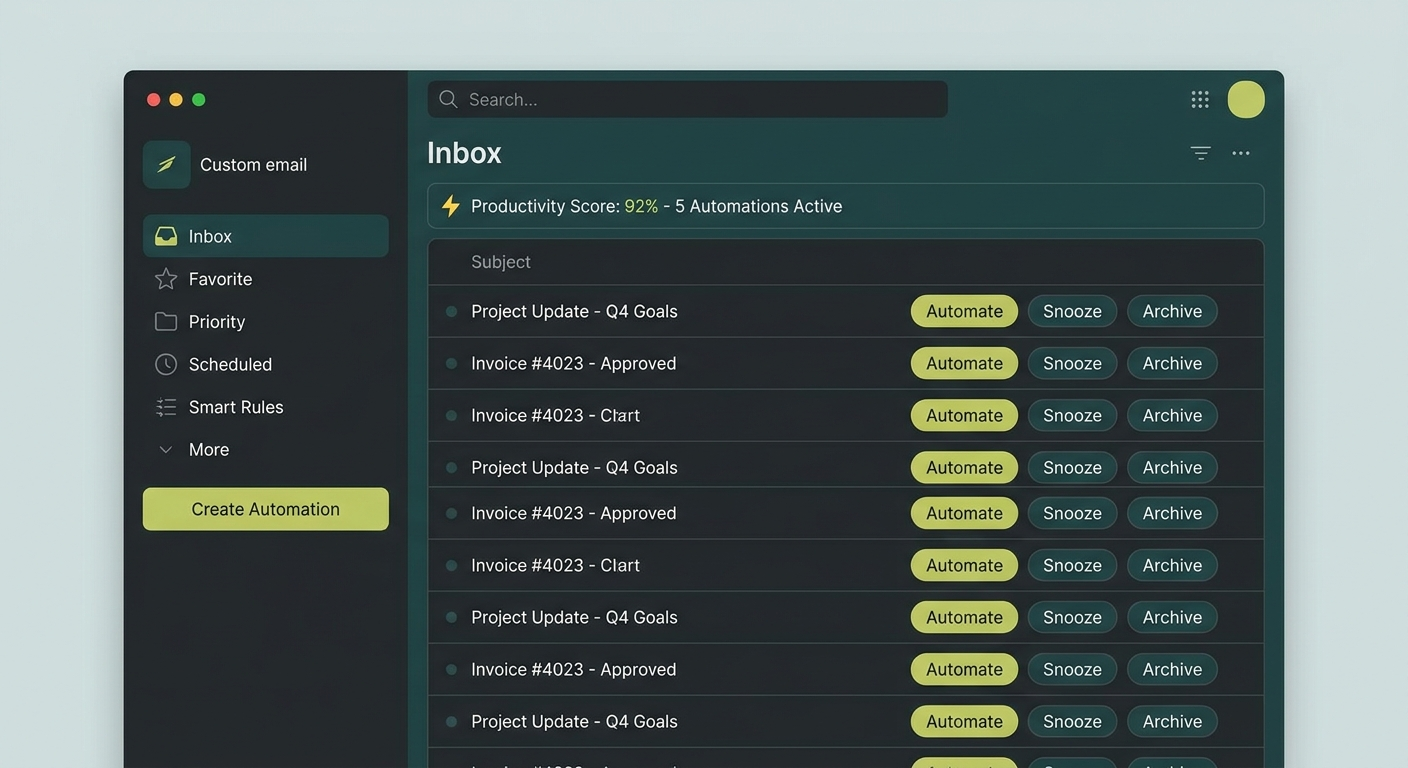
Outlook Quick Steps let you automate repetitive email tasks with a single click. If you spend hours each week moving, forwarding, flagging, and filing emails, Quick Steps can cut that time significantly. This guide walks through exactly how to set them up, assign keyboard shortcuts, and make them work for your workflow.
What Are Outlook Quick Steps?
Outlook Quick Steps are one-click automation buttons that sit inside the Home tab of your ribbon. Each Quick Step can perform multiple actions at once: move an email to a folder, mark it as read, forward it to a colleague, and reply, all in a single click. They save time by replacing repetitive multi-step processes with a single interaction.
Quick Steps are ideal for anyone who processes high volumes of email daily. Think account managers, project leads, office administrators, or IT support staff who handle dozens of similar messages every week.
Useful Quick Steps to Build Today
Here are four practical Quick Steps that will save you real time.
1. File and Mark Done
Move an email to a specific folder and mark it as read simultaneously. This suits notifications, newsletters, or routine updates you want to archive without reading in full.
2. Reply and Delete
Open a reply to the sender and delete the original message once you send. Useful for quick acknowledgements where you do not need to keep the thread.
3. Forward to Manager
Forward an email to your manager with one click. This is helpful for approvals, escalations, or anything that needs sign-off before you action it.
4. Meeting Follow-Up
Create a meeting request with the sender pre-filled and a standard subject line. Great for scheduling conversations directly from an inbound message.
How to Create a Quick Step in Outlook
Follow these steps to build your first Quick Step.
- Open Outlook and go to the Home tab on the ribbon.
- Find the Quick Steps group in the middle of the ribbon.
- Click the small arrow in the bottom-right corner of the Quick Steps box to open the full gallery.
- Click New Quick Step, then choose Custom to build one from scratch.
- Give your Quick Step a clear name, such as “File to Projects”.
- Click Add Action and select the action you want, such as “Move to folder” or “Mark as read”.
- Add more actions if needed. You can stack multiple actions into one Quick Step.
- Set a tooltip if helpful, then click Finish.
Your new Quick Step will now appear in the ribbon, ready to use on any selected email.
How to Assign a Keyboard Shortcut
Quick Steps become even faster with a keyboard shortcut assigned to them.
- Open the Quick Steps gallery and click Manage Quick Steps.
- Select the Quick Step you want to modify.
- Click Edit.
- In the edit window, find the Shortcut key dropdown.
- Choose from the available options, such as Ctrl+Shift+1 through Ctrl+Shift+9.
- Click Save.
You can now trigger that Quick Step from your keyboard without touching the mouse. This is especially useful when you are processing a long inbox.
How to Edit or Delete Quick Steps
Your needs will change over time. Here is how to update or remove Quick Steps.
- In the Home tab, open the Quick Steps gallery.
- Right-click the Quick Step you want to change.
- Select Edit Quick Step to update its name, actions, or shortcut.
- Select Delete Quick Step to remove it entirely.
Changes take effect immediately. You can also reorder Quick Steps by dragging them in the gallery to suit your workflow priorities.
Built-In Quick Steps and How to Customise Them
Outlook includes several default Quick Steps worth reviewing before building new ones.
- To Manager: Forwards the selected email to your manager. Set up your manager’s address once and it works automatically from then on.
- Team Email: Sends a new email to your team distribution list. Useful for updates and announcements.
- Done: Moves an email to a specified folder and marks it as complete.
- Reply and Delete: Replies to the sender and removes the original from your inbox.
To customise a built-in Quick Step, right-click it and select Edit Quick Step. You can change the target folder, recipient address, or subject line to match your actual setup.
How Copilot Complements Quick Steps
Microsoft Copilot and Quick Steps serve different purposes, but they work well together. Quick Steps handle the routing: where an email goes, who receives it, and what status it gets. Copilot handles the content: summarising long threads, drafting replies, and suggesting follow-up actions.
A practical combination looks like this. You receive a complex client email. You ask Copilot to draft a response. Once you are happy with the draft, you use a Quick Step to send it, flag the original for follow-up, and move it to your client folder in one click. This pairing reduces both the thinking time and the manual steps involved in processing each message.
Who Benefits Most from Quick Steps
Quick Steps deliver the biggest return for professionals who handle high email volume every day. This includes:
- Account managers who forward, approve, and file client emails repeatedly.
- Project coordinators who route updates between teams.
- Support staff who triage requests and escalate issues.
- Executives who delegate tasks and need fast filing systems.
If you spend more than one hour per day on email administration, Quick Steps are worth the 15 minutes it takes to set them up.
Need Help Optimising Your Microsoft 365 Environment?
If your team is ready to get more out of Outlook and Microsoft 365, Otto IT can help. From configuration to training, we work with professional services firms to make their technology stack actually work for them.
Book a discovery call or get in touch via our contact page to start the conversation.
Frequently Asked Questions
Are Outlook Quick Steps available in Outlook on the web?
Quick Steps are available in classic Outlook for desktop. The new Outlook for web and Windows has limited Quick Steps support, though Microsoft is continuing to expand this feature. If you primarily use desktop Outlook, you will have full access to all Quick Steps features.
Can I share Quick Steps with my team?
Quick Steps are stored locally and are not natively shared across accounts. However, you can export your Quick Steps configuration or document the steps for colleagues to replicate. Some organisations use Group Policy to push standard Quick Steps to all users.
Do Quick Steps work with shared mailboxes?
Yes. If you have access to a shared mailbox in Outlook, Quick Steps apply to emails within that mailbox the same way they do in your personal inbox.
How many Quick Steps can I create?
There is no firm published limit on the number of Quick Steps you can create. In practice, most users find that five to ten well-designed Quick Steps cover the majority of their repetitive email tasks. More than that can make the ribbon feel cluttered and harder to navigate.
managed it support articles
Related Blog Articles
Discover more insights to optimise your business with the latest IT trends and best practices. Stay ahead of the curve by learning how to leverage cutting-edge technology for success. Explore expert advice and valuable guidance to navigate the evolving world of IT solutions