

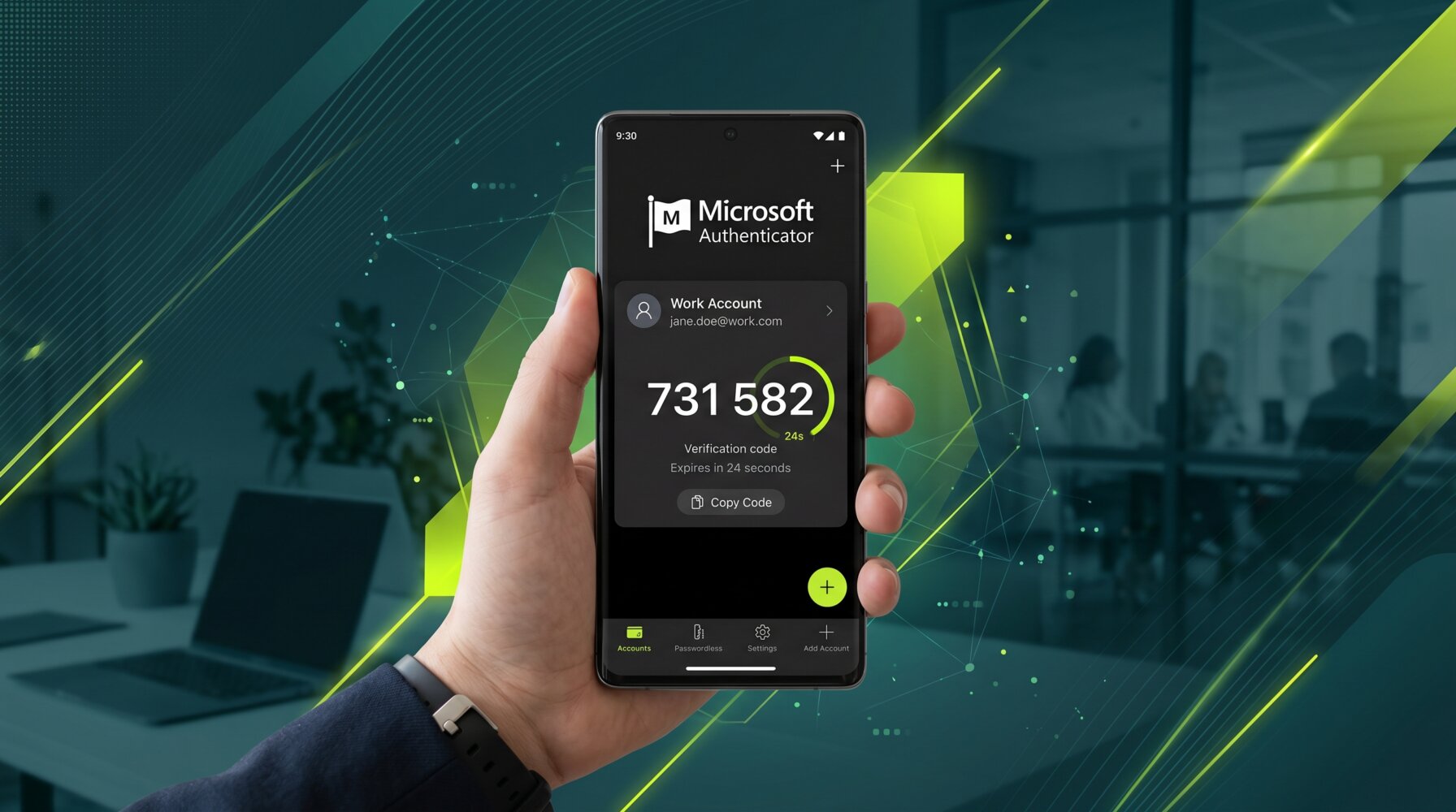
Cyber threats targeting Australian businesses are more common than ever. One of the simplest and most effective ways to protect your business accounts is by enabling multi-factor authentication (MFA). Microsoft Authenticator is the recommended app for securing Microsoft 365 accounts, and setting it up takes less than five minutes.
This guide walks you through the full process of setting up Microsoft Authenticator for your business account, whether you are doing it yourself or rolling it out across your team.
What Is Microsoft Authenticator?
Microsoft Authenticator is a free mobile app that generates time-based one-time passcodes (TOTP) for your accounts. When you sign in to Microsoft 365 or other apps, you enter your password as usual and then approve the sign-in through the app on your phone. Even if someone steals your password, they cannot access your account without physically having your phone.
The app works on both iOS (iPhone) and Android devices. It supports push notifications, one-time codes, and passwordless sign-in, depending on how your administrator has configured your account.
What You Need Before You Start
- A smartphone running iOS 14 or later, or Android 8.0 or later
- Your Microsoft 365 work account username and password
- Access to the internet on both your phone and computer
- A few minutes of uninterrupted time to complete the setup
If your organisation uses Conditional Access policies, your IT administrator may have already required MFA on your account. In that case, you will be prompted to set up Microsoft Authenticator the next time you sign in.
Step 1: Download the Microsoft Authenticator App
Open the App Store (iPhone) or Google Play Store (Android) on your phone. Search for “Microsoft Authenticator” and download the official app published by Microsoft Corporation. Make sure you download the correct app, as there are similar-looking apps from other publishers.
Once downloaded, open the app. You will be greeted with a welcome screen. You do not need to sign in to set it up — the setup happens through your computer browser.
Step 2: Go to Your Microsoft Account Security Settings
On your computer, open a browser and go to mysignins.microsoft.com. Sign in with your work Microsoft 365 account.
Once signed in, click on Security info in the left sidebar, then click Add sign-in method. From the dropdown list, select Authenticator app and click Add.
Microsoft will show you a brief introduction screen. Click Next to proceed.
Step 3: Scan the QR Code
Microsoft will display a QR code on your screen. On your phone, open the Microsoft Authenticator app and tap the plus (+) icon at the top right corner to add an account.
Select Work or school account, then tap Scan QR code. Point your phone’s camera at the QR code on your computer screen. The app will automatically detect and add your account.
Once scanned, your account will appear in the app with a six-digit rotating code. These codes refresh every 30 seconds.
Step 4: Verify the Setup
After scanning the QR code, Microsoft will ask you to test the connection. A notification will be sent to your phone asking you to approve a sign-in request. Tap Approve on your phone to confirm.
If everything worked correctly, your browser will show a success message. Click Done to finish the setup.
From this point forward, whenever you sign in to your Microsoft 365 account from a new device or browser, you will be prompted to approve the sign-in via your phone.
Step 5: Set Up a Backup Method
It is important to have a backup sign-in method in case you lose your phone. Go back to Security info and add a backup method such as a phone number for SMS codes.
This ensures you can still access your account even if your phone is unavailable. Your IT administrator can also help you regain access if needed.
Tips for Using Microsoft Authenticator Day to Day
- Keep your app updated: Microsoft regularly releases updates to improve security and compatibility. Enable automatic updates on your phone.
- Enable phone backup: In the Authenticator app settings, enable cloud backup so you can restore your accounts if you get a new phone.
- Never approve requests you did not initiate: If you receive an approval request when you are not signing in, tap Deny immediately and report it to your IT team.
- Protect your phone with a PIN or biometrics: Since your phone is now a key to your accounts, make sure it is locked with a PIN, fingerprint, or face unlock.
Rolling Out Microsoft Authenticator Across Your Team
If you are an IT administrator or business owner looking to roll out MFA across your organisation, Microsoft 365 allows you to enforce MFA through the Microsoft Entra admin centre (formerly Azure Active Directory). You can use Conditional Access policies to require MFA for all users or specific groups.
For most small and medium businesses, enabling Security Defaults in Entra is the simplest starting point. This automatically enforces MFA for all users without requiring individual policy configuration.
You can find guidance on Microsoft 365 security settings and user management through the Otto IT Microsoft 365 services page. For businesses looking to strengthen their overall security posture, the Otto IT cybersecurity services page has more information.
What Happens If You Get a New Phone?
If you change phones, you will need to transfer your Authenticator accounts to the new device. The easiest way to do this is through the app’s built-in cloud backup feature.
On your old phone, go to Settings inside the Authenticator app and enable Cloud Backup. On your new phone, after installing the app, tap Restore from backup and sign in with your personal Microsoft account. Your accounts will be restored automatically.
If you did not have backup enabled and no longer have access to your old phone, contact your IT administrator. They can reset your MFA settings so you can set up the Authenticator app again on your new device.
Why MFA Matters for Your Business
According to Microsoft, accounts with MFA enabled are over 99% less likely to be compromised compared to accounts relying on passwords alone. For Australian businesses handling client data, financial records, or sensitive communications, MFA is no longer optional — it is a baseline security requirement.
Many cyber insurance providers and compliance frameworks, including the Australian Government’s Essential Eight, now require MFA as a minimum standard. Setting up Microsoft Authenticator is a straightforward step that delivers significant protection.
Summary
Setting up Microsoft Authenticator takes only a few minutes and dramatically improves the security of your business accounts. Download the app, scan the QR code from your Microsoft security settings, approve the test notification, and you are done.
If your business needs help getting the most out of Microsoft 365 or keeping your IT running smoothly, talk to the Otto IT team.
managed it support articles
Related Blog Articles
Discover more insights to optimise your business with the latest IT trends and best practices. Stay ahead of the curve by learning how to leverage cutting-edge technology for success. Explore expert advice and valuable guidance to navigate the evolving world of IT solutions